How Do I Lock My Facebook Profile?

Facebook remains one of the most popular social media platforms worldwide, connecting billions of people through photos, videos, and daily updates. However, with this connectivity comes a growing concern about privacy. Many users prefer to share personal content only with trusted friends, not with strangers or the general public.
To address these privacy concerns, Facebook introduced a feature called “Lock Profile.” This simple but effective tool helps users protect their photos, videos, posts, and personal information from unwanted viewers. If you want to take control of who can see your content and ensure that your information stays private, locking your Facebook profile is the right step.
In this guide, we’ll cover the main reasons why you should lock your Facebook profile, how to lock it step-by-step.
1. Reasons Why You Should Lock Your Facebook Profile
There are several practical reasons why locking your Facebook profile is important, especially if you care about privacy and security:
- Protect your photos and videos — Strangers won’t be able to open, enlarge, or download your profile or cover photos once your profile is locked.
- Hide personal details — Your “About” section (including workplace, location, and education) becomes visible only to friends.
- Control your visibility — Only your Facebook friends can see your full timeline, posts, and stories.
- Prevent data misuse — Locking your profile minimizes the chances of impersonation, data scraping, and image theft.
- Avoid unwanted attention — It keeps your social space safer by blocking outsiders from interacting with your content.
- Peace of mind — You can share updates freely, knowing your posts are visible only to the people you trust.
2. How Do I Lock My Facebook Profile?
Locking your Facebook profile takes just a few steps. You can do it from either your smartphone or a computer. Below are the instructions for both.
2.1 On Mobile (Android & iPhone)
- Open the Facebook app on your smartphone.
- Tap your profile picture or your name to open your profile page.
- Tap the three dots (⋯) icon next to “Edit Profile.”
- You’ll see the option Lock Profile — tap it.
- Read the information that appears explaining what this feature does.
- Finally, tap Lock Your Profile to confirm.
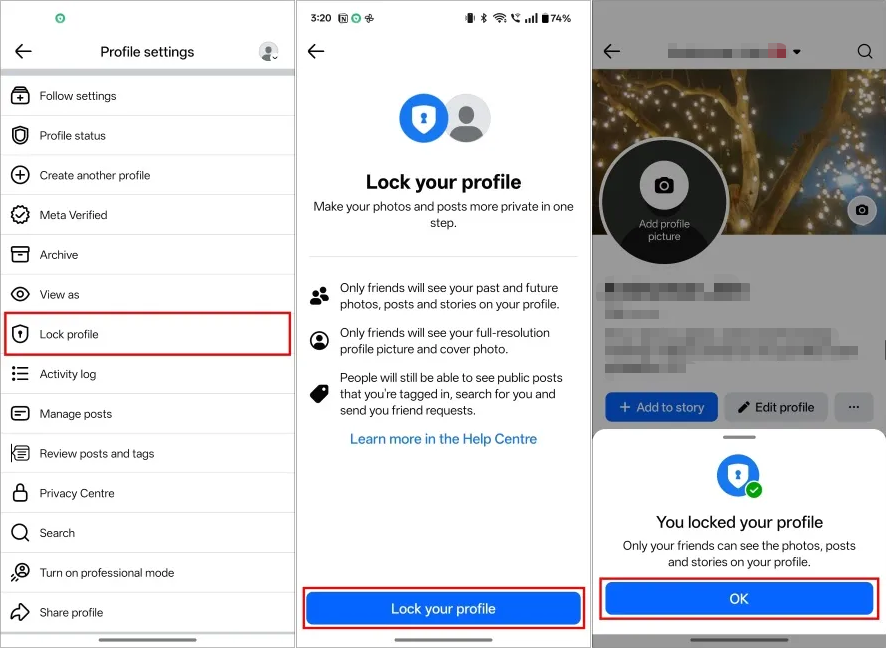
Once done, a small lock icon will appear on your profile, confirming that your privacy settings are successfully enabled.
2.2 On Desktop (Facebook Website)
- Visit facebook.com and log into your account.
- Go to your profile by clicking your name or profile picture.
- Under your cover photo, click the three dots (⋯) menu.
- Select Lock Profile from the dropdown.
- Review the details shown, then click Lock Your Profile.
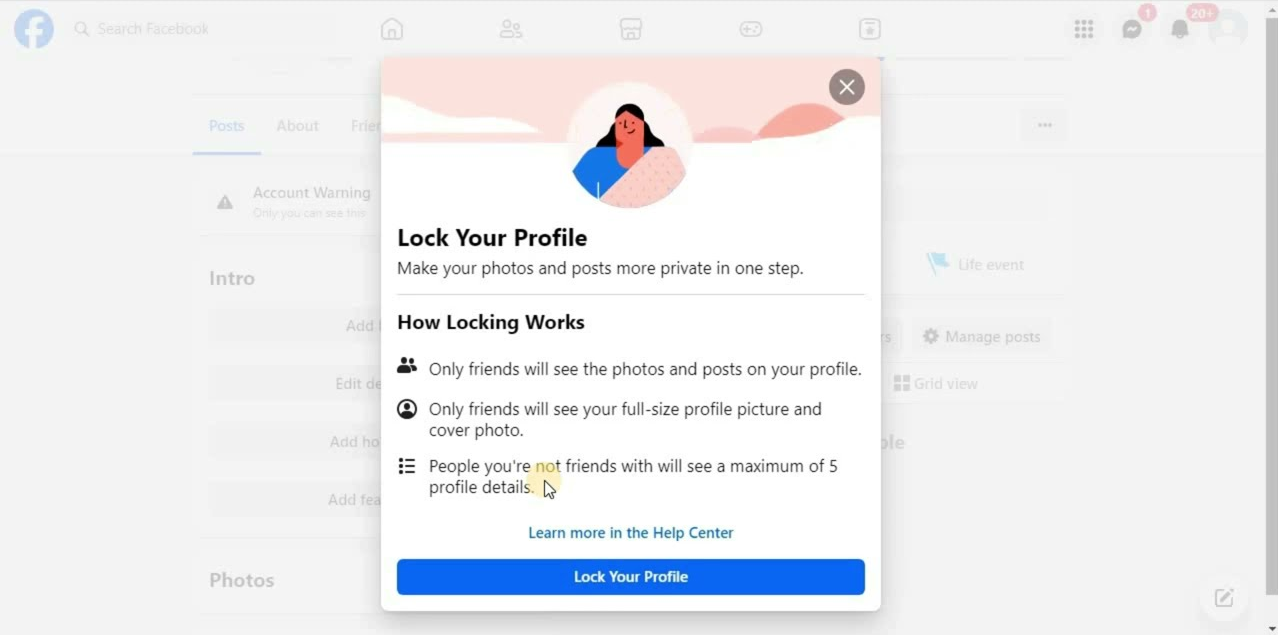
Your account will now be locked, and only your friends can view your full content.
3. If You Don’t See “Lock Profile”
In some regions, especially in countries like the United States or certain parts of Europe, Facebook’s “Lock Profile” option might not yet appear. If you don’t see it, you can still manually change your privacy settings to achieve a similar level of protection:
- Limit future posts — Go to Settings → Privacy → Who can see your future posts → select Friends.
- Restrict past posts — Use the Limit Past Posts option to change old public posts to “Friends only.”
- Hide your friends list — Open your profile → Friends tab → three dots → Edit Privacy → choose Only Me or Friends.
- Enable tag review — Go to Settings → Profile and Tagging → Review posts you’re tagged in → turn it on.
- Disable search engine linking — In privacy settings, turn off Allow search engines outside of Facebook to link to your profile.
By adjusting these settings, you can manually lock down your account even if the “Lock Profile” button isn’t available.
4. Bonus: Backup Facebook Media with Faceget
Before locking your profile, it’s wise to back up all your Facebook photos and videos — especially if you’ve been using the platform for years. Once you lock your profile or tighten privacy settings, accessing some of your old content can become harder. This is where Faceget comes in.
Key features of Faceget:
- Download entire Facebook albums or multiple videos at once, instead of saving files one by one.
- Keep the original quality of photos and videos, including 720p, 1080p, or even higher resolutions.
- Convert videos and photos in popukar formats.
- Built-in browser to log in securely to download media visible only to your account.
- Fast download speed and user-friendly interface.
How to use Faceget to download Facebook media:
Step 1: Install Faceget on your computer (available for Windows and macOS).
Step 2: Open Facget and navigate to facebook, log in with your account to acccess the media.
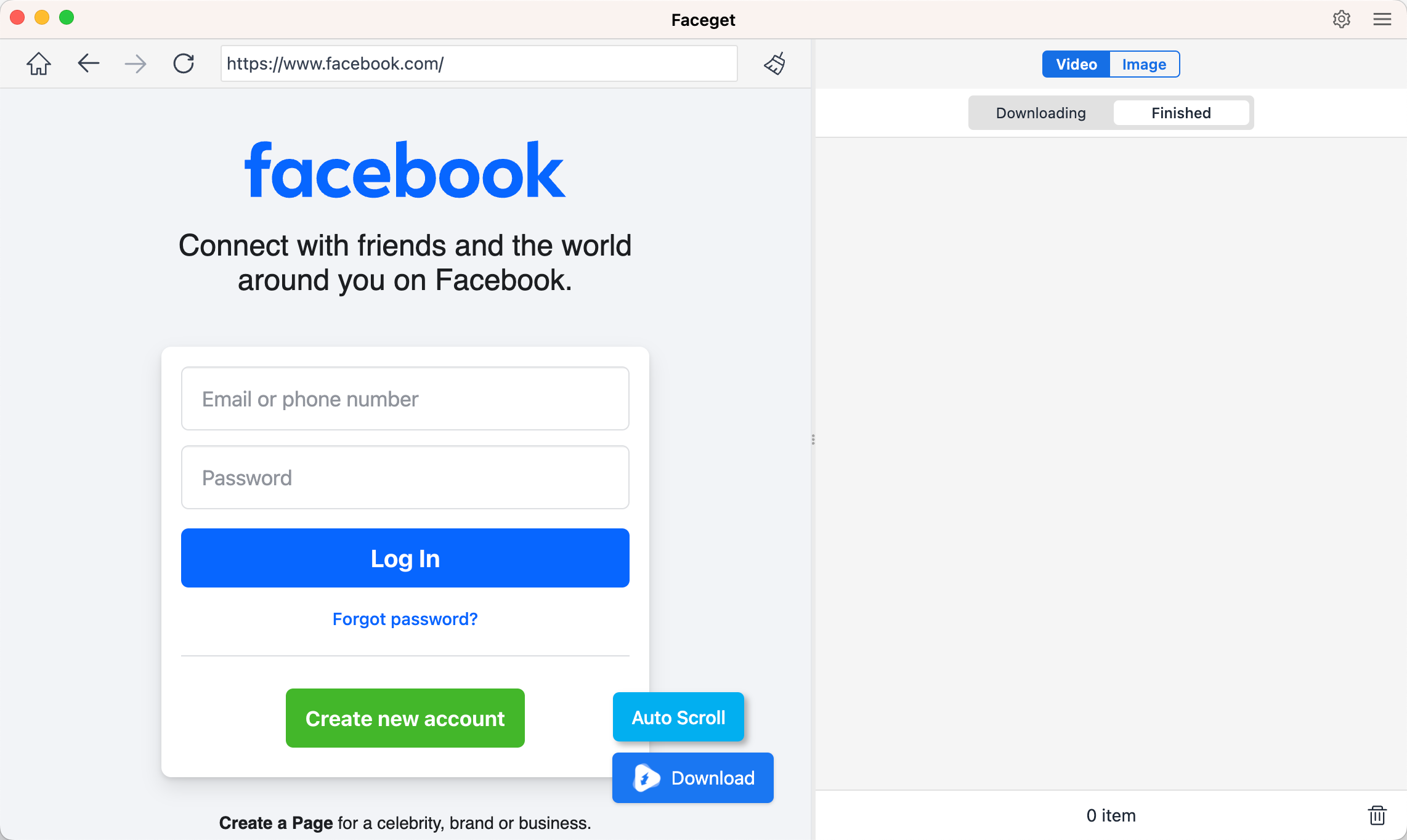
Step 3: To download a Facebook video, locate the desired Facebook video, choose your output format and resolution, then press the Download button to start the download process.
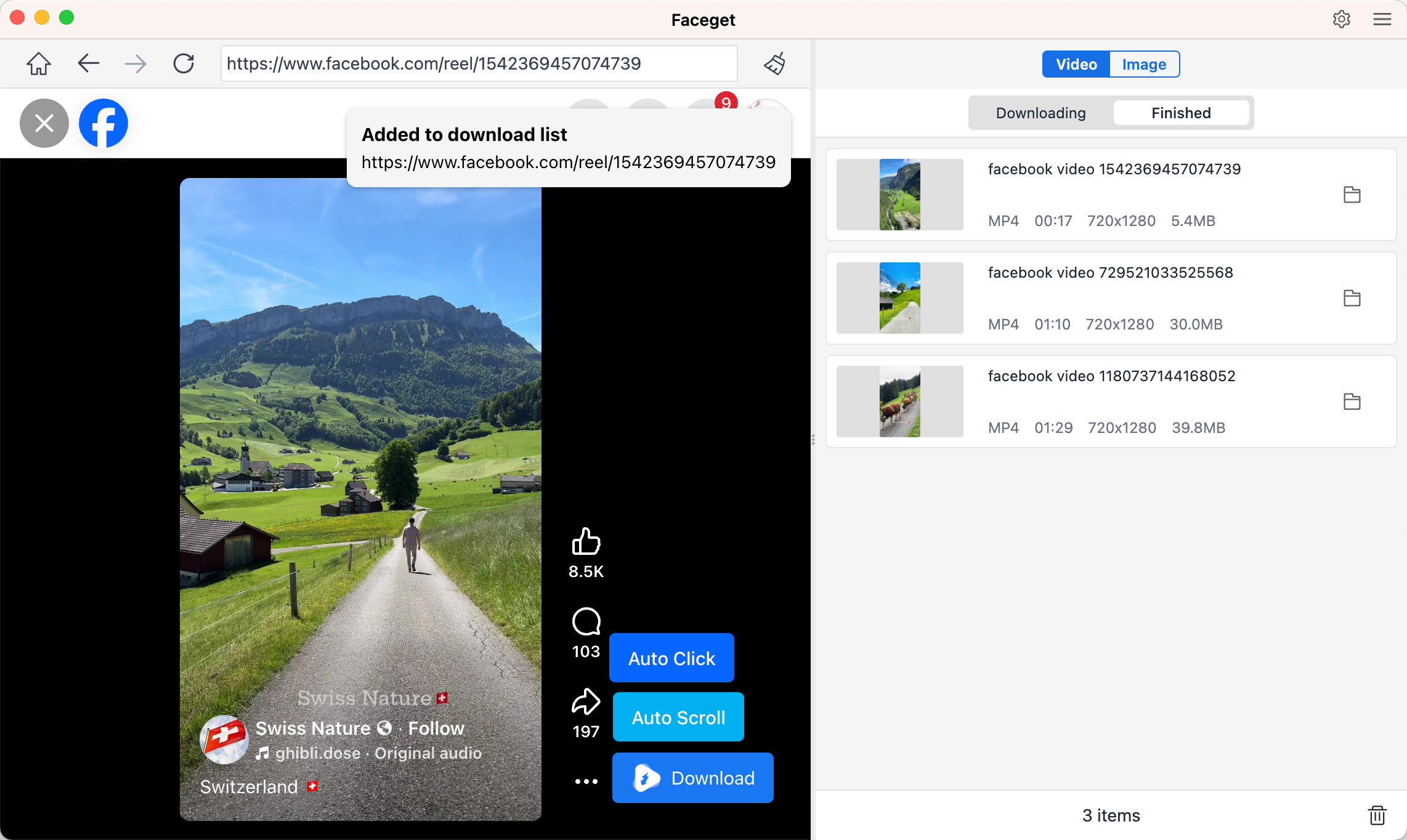
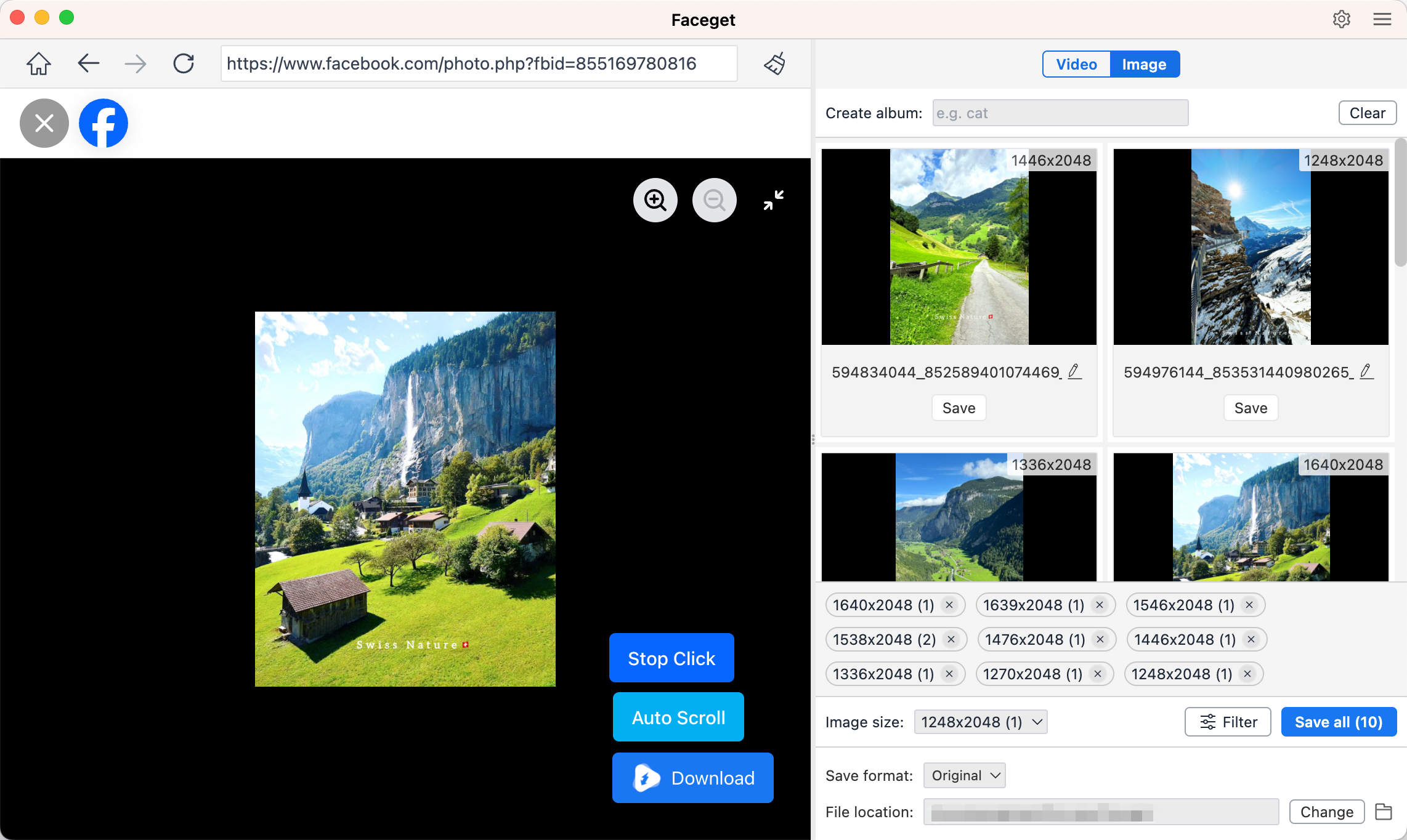
Step 4: To download Facebook photos, let Faceget automatically click to detect all image files. Then, filter your desired photos and download them in bulk.
5. Conclusion
Locking your Facebook profile is the easiest way to protect your privacy and keep your posts, photos, and personal information safe from strangers. It gives you peace of mind knowing that only your friends can see what you share.
Before making any privacy changes, remember to back up your Facebook media with Faceget — the best bulk Facebook video and photo downloader. With Faceget, you can quickly save all your Facebook photos and videos in full quality, ensuring your memories stay safe even if you later lock or delete your profile.
Lock your Facebook profile for privacy. Use Faceget for protection.