How to Clear Facebook Cache?

Facebook is one of the most widely used social platforms in the world, and like any app, it builds up cached data over time. Cache helps Facebook load faster by storing temporary files on your device. However, too much cached data can cause a range of problems: slow loading, outdated content, images not appearing, pages freezing, or notifications getting stuck.
Whether you use Facebook on an Android device, iPhone, or web browser, clearing the cache regularly is one of the simplest ways to fix performance issues and refresh your experience. In this guide, you’ll learn how to clear Facebook cache on differenr devices, including iPhone, Android and Web.
1. How to Clear Facebook Cache?
Clearing cache works differently depending on the device you’re using. Below are the step-by-step methods for Android, iOS, and desktop browsers.
1.1 Clear Facebook Cache on iPhone (iOS)
iOS does not allow you to clear cache directly inside app settings. Instead, you must reinstall or offload the app to remove cached data.
How to clear facebook cache on iPhone:
- Option A — Offload the App (keeps your login and settings): Open Settings → Tap General → iPhone Storage → Find and tap Facebook → Tap Offload App → Tap Reinstall App.
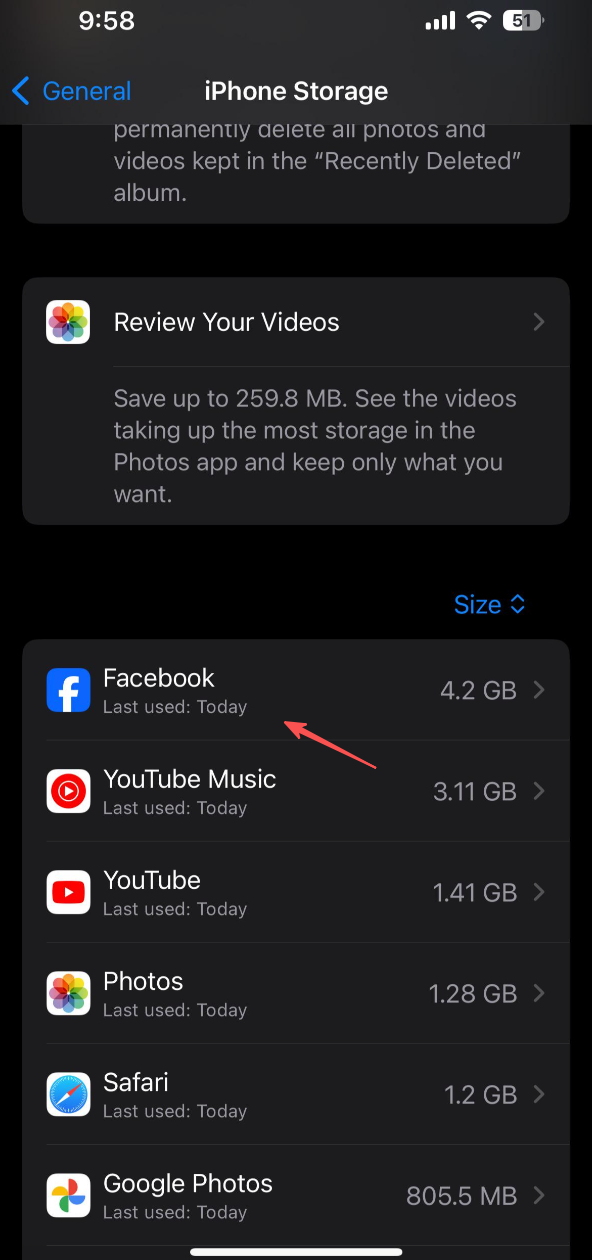
Offloading removes cached files but keeps your login details and documents, so it’s fast and safe.
- Option B — Delete and Reinstall (full reset): Press and hold the Facebook app icon → Choose Remove App → Delete App → Reinstall Facebook from the App Store.
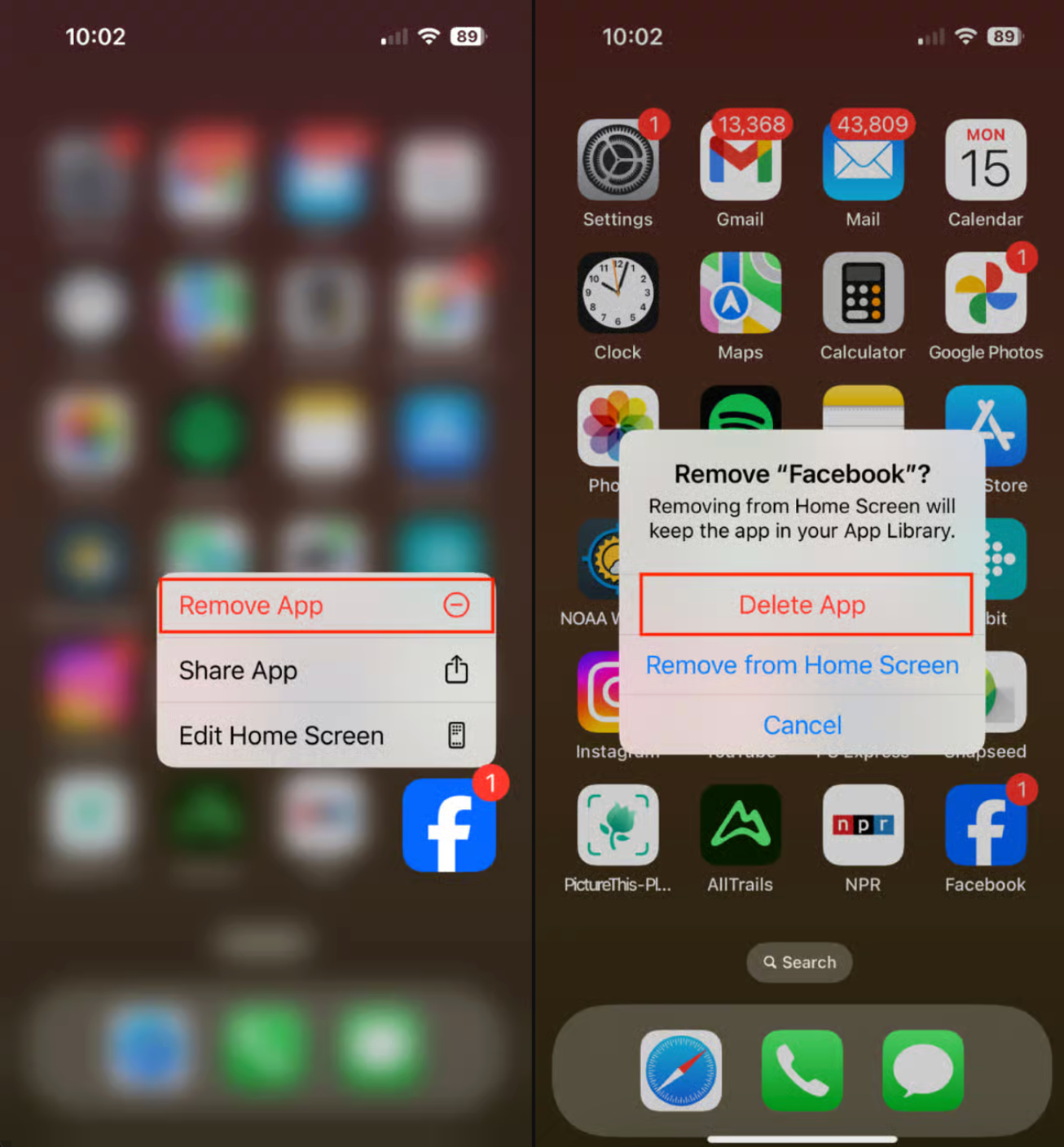
Deleting and reinstalling clears every piece of cached data, which is ideal if Facebook keeps crashing or refusing to load content.
1.2 Clear Facebook Cache on Android
Android systems let users clear cache directly from app settings without deleting app data, making this the easiest option.
Steps:
Open the Settings app on your phone → Tap Apps → Scroll through the list and tap Facebook → Tap Storage & cache → Tap Clear Cache.
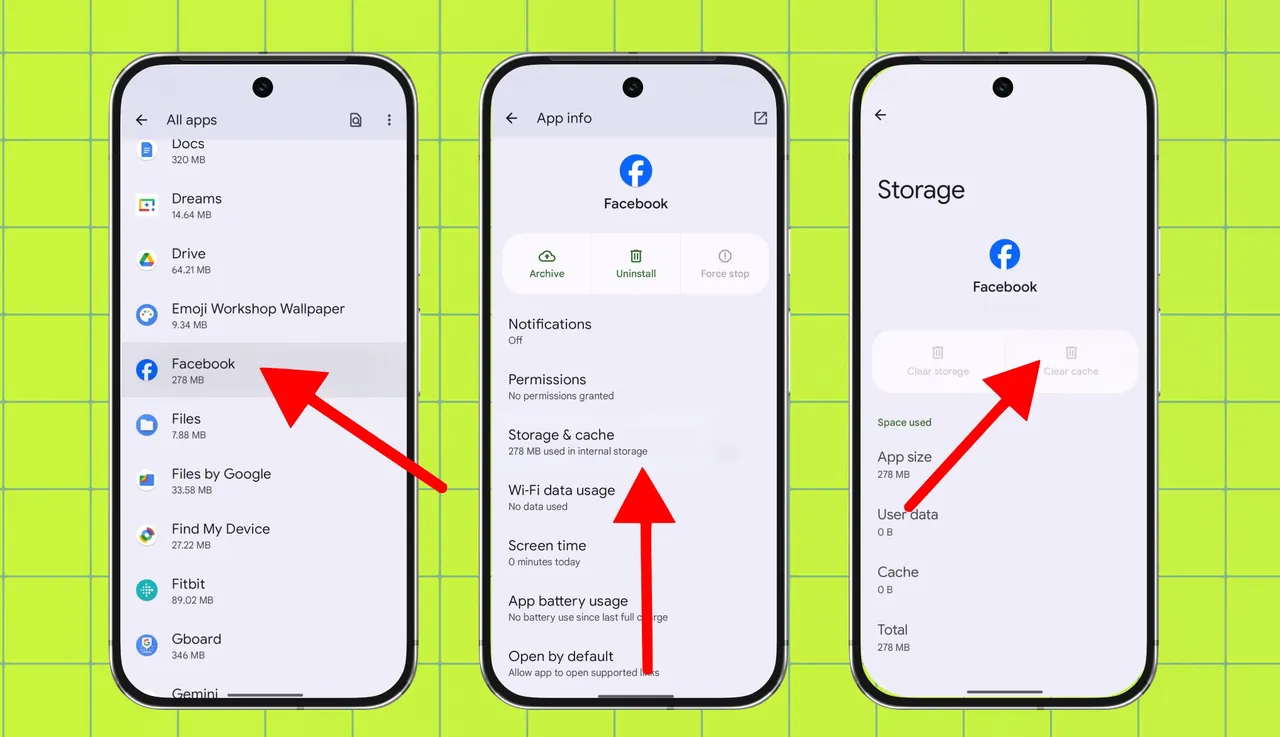
This instantly removes temporary files but keeps you logged in and preserves your data. You do not need to reinstall the app.
1.3 Clear Facebook Cache on Desktop
If you use Facebook in a browser like Chrome, Safari, Firefox, or Edge, the cache comes from the browser itself.
Clear Cache on Chrome, Edge, or Brave:
- Press Ctrl + Shift + Delete (Windows)
or Command + Shift + Delete (Mac). - Select Cached images and files.
- Click Clear data.
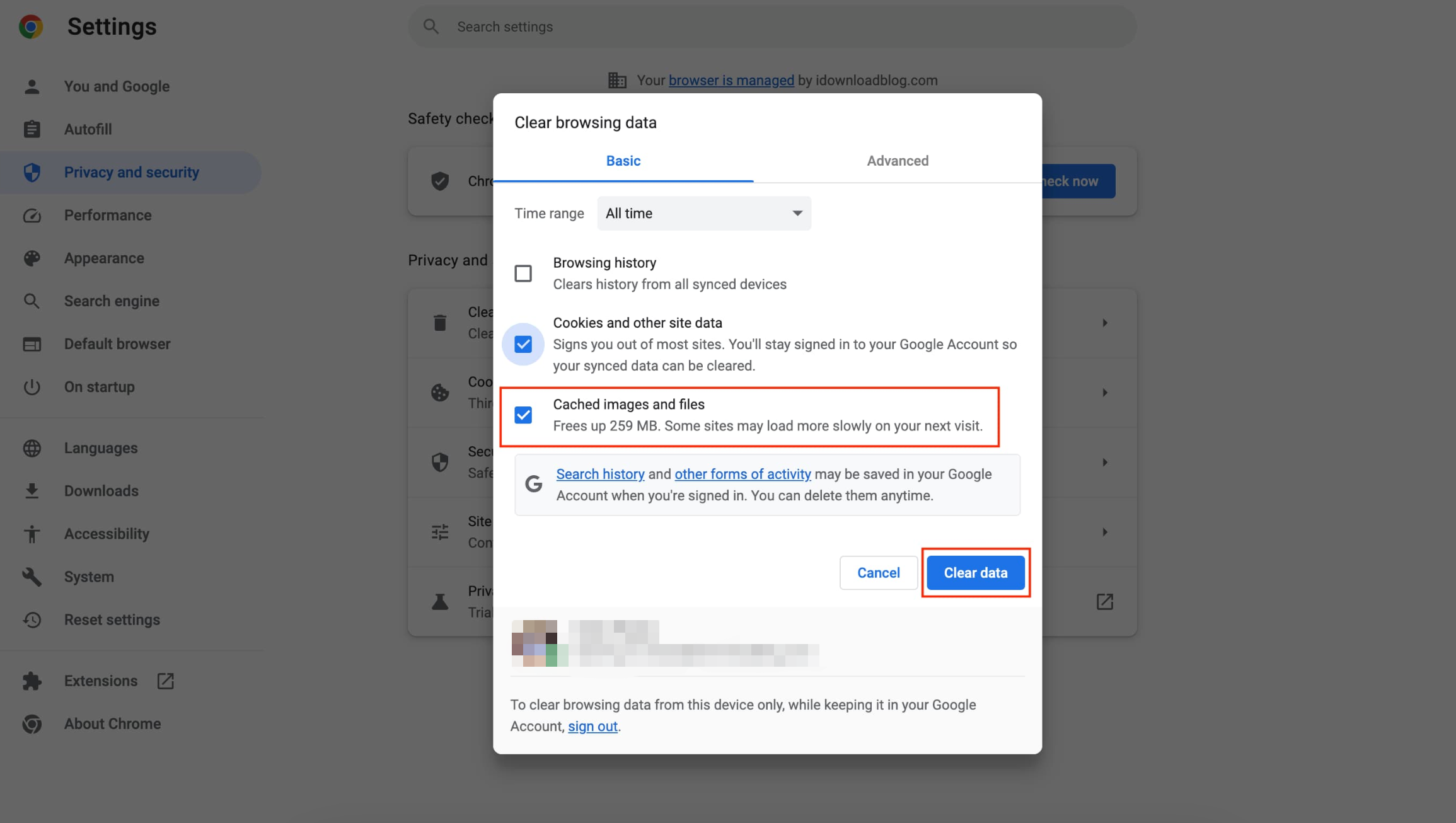
Clear Cache on Safari:
- Open Safari > Preferences.
- Go to Advanced and enable Show Develop menu in menu bar.
- Click Develop in the top menu.
- Select Empty Caches.
Clear Cache on Firefox:
- Open Settings.
- Go to Privacy & Security.
- Scroll to Cookies and Site Data.
- Click Clear Data → choose Cached Web Content.
Clearing browser cache is useful when Facebook loads old images, shows outdated posts, or fails to display new changes.
2. Bonus: Back Up Facebook Media on PC with Faceget
Clearing cache helps improve performance, but many users also want to back up their Facebook videos and images—especially before clearing app data or reinstalling Facebook. That’s where Faceget becomes incredibly useful.
Faceget is a professional Facebook photo and video downloader that lets you save your own media or any public content directly to your computer. This is especially handy if you want to archive years of photos, download your videos in original quality, or save Facebook Reels for offline viewing.
Key Features of Faceget:
- Bulk download Facebook albums, videos, and images
- Work with pages, profiles, groups, and Reels
- Support HD and original-quality downloads
- Filter images by choosing types and sizes
- Work on both Windows and Mac
- Fast, stable, and beginner-friendly
How to Back Up Facebook Media with Faceget:
Step 1: Download and install Faceget on your computer (supports both Windows and macOS).
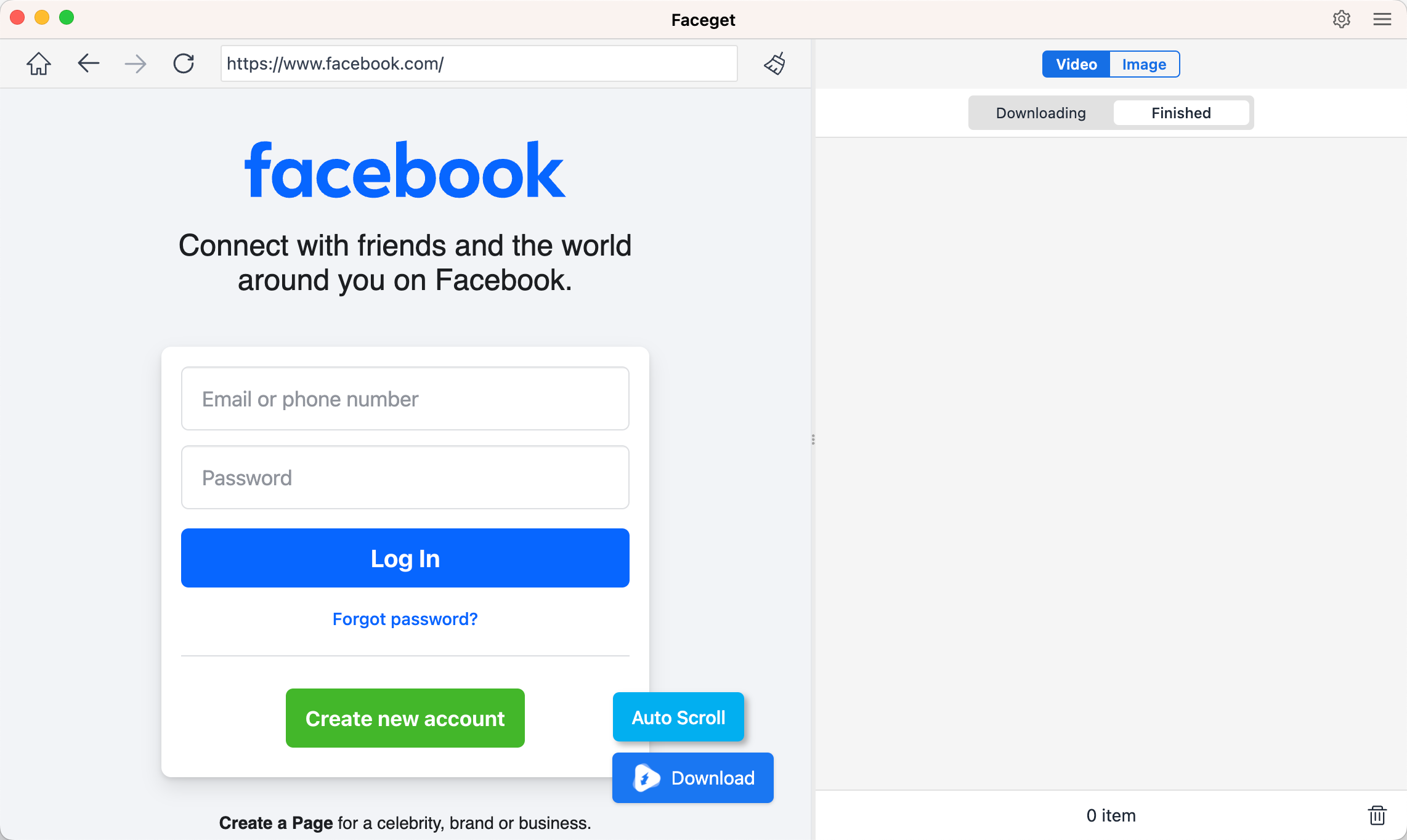
Step 2: Launch Faceget and log in to your Facebook account to access your media.
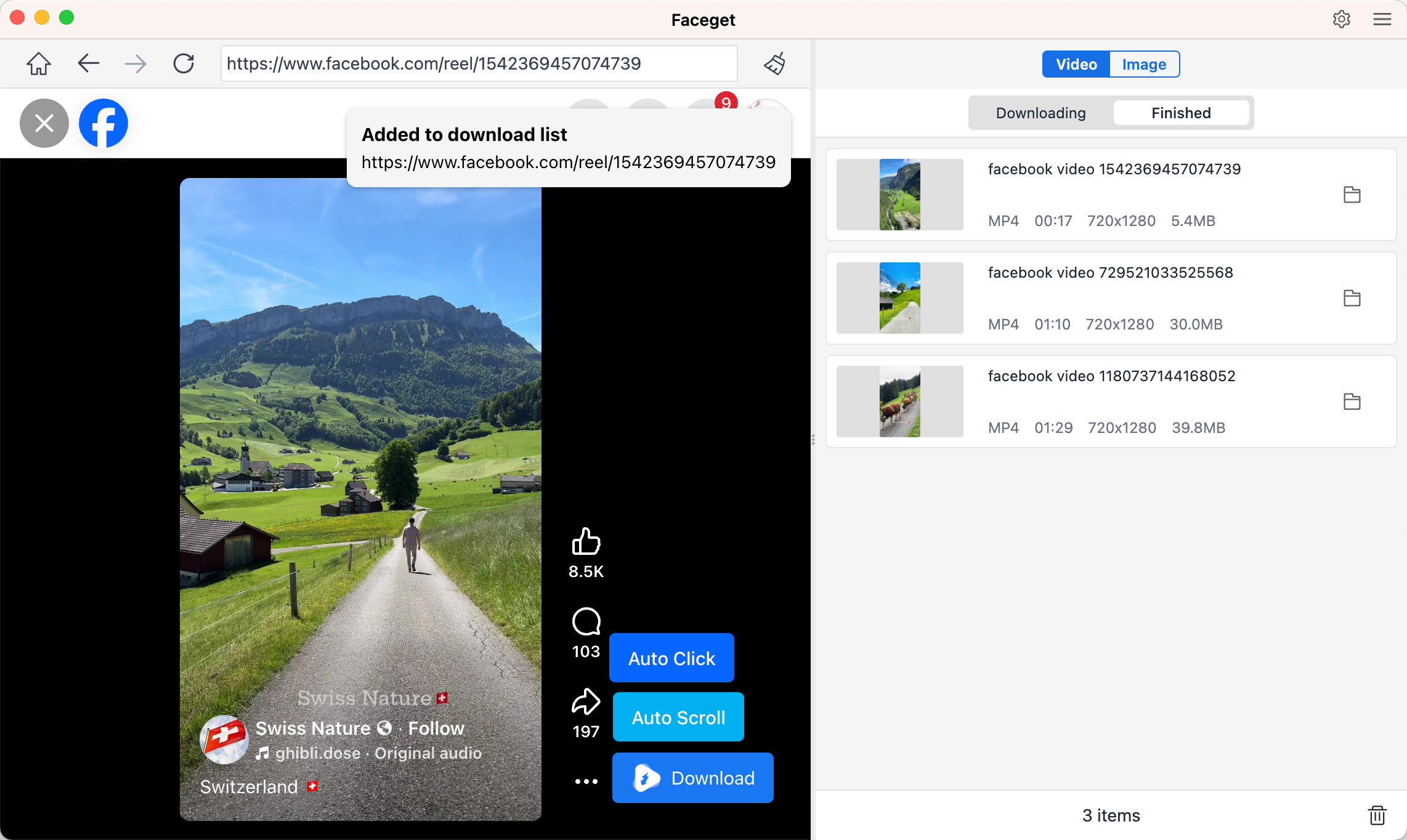
Step 3: For videos: Find the Facebook video you want and play it, select the output format and resolution, and click Download to start.
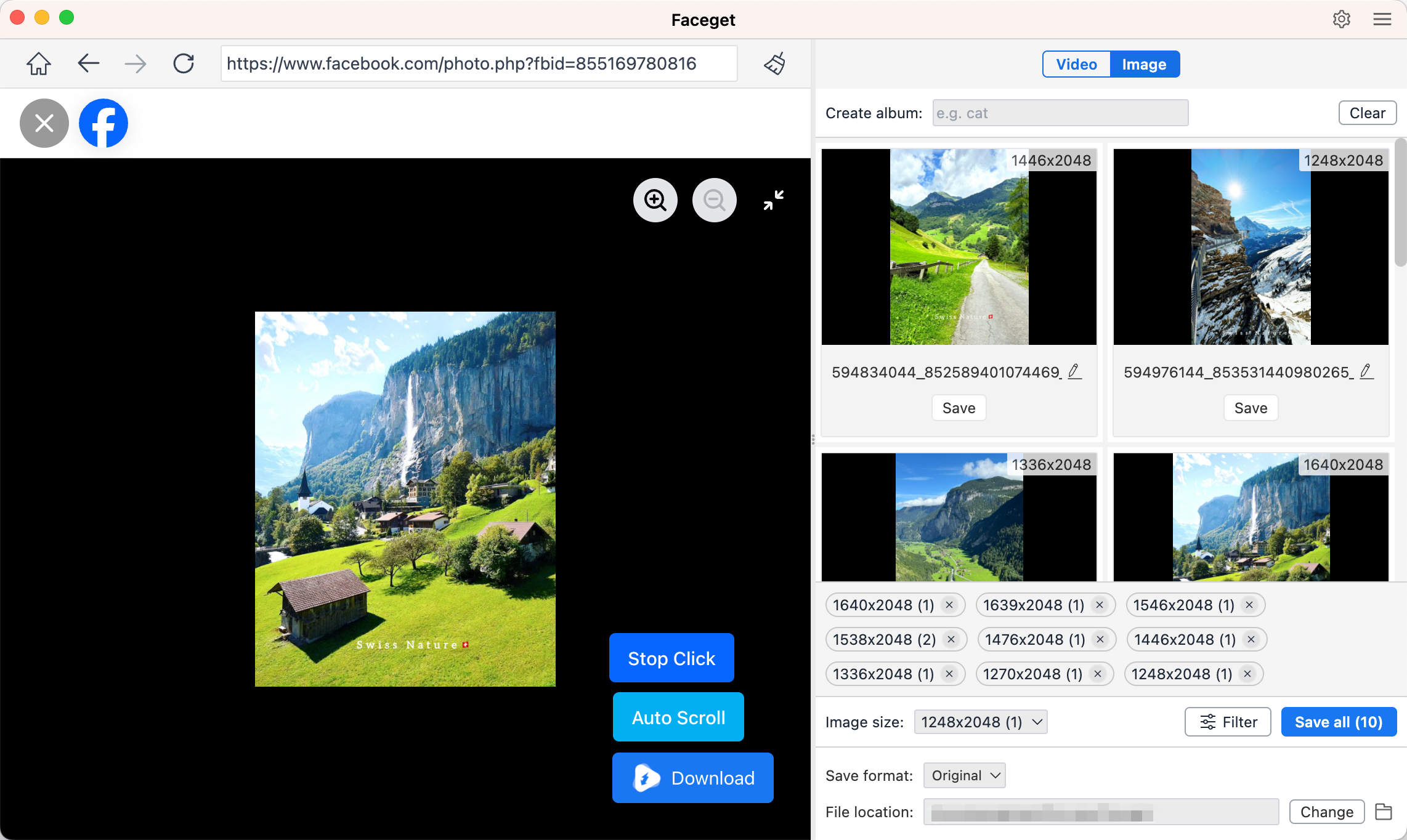
Step 4: For photos: Allow Faceget to scroll and detect all images. Then select the photos you want and download them in bulk.
3. Conclusion
Clearing Facebook cache is one of the simplest ways to solve app glitches, slow loading times, and outdated content problems. Whether you’re using an Android phone, iPhone, or a desktop browser, the process is quick and helps refresh Facebook’s performance instantly.
However, clearing cache—especially on iPhone where reinstalling the app is required—may temporarily remove stored data. That’s why it’s always smart to back up important Facebook media beforehand. Faceget makes this easy, giving you a fast, secure way to download photos, videos, and entire albums to your computer.
If you want a reliable tool for long-term backup, bulk downloading, and saving Facebook content in the highest quality, Faceget is the recommended solution.