How to Turn Off URLs in Fansly Chat?

Fansly has become one of the most popular platforms for creators to share exclusive content and interact directly with subscribers. The platform combines subscription-based media sharing with real-time chat features, giving fans a unique way to engage with their favorite creators. However, sometimes users and creators encounter unwanted links or URLs being shared in chat messages, which can lead to spam, phishing attempts, or simply cluttered conversations.
Whether you’re a creator looking to manage your chat environment or a subscriber wanting a cleaner chat experience, knowing how to control URL sharing is essential. In this guide, we’ll explain how to turn off URLs in Fansly chat, provide tips for managing messages effectively, and introduce a professional solution to backup Fansly media.
1. How to Turn Off URLs in Fansly Chat?
As of now, Fansly does not offer a universal toggle to block all URLs in chat. However, there are several strategies you can use to reduce or prevent unwanted links from appearing in conversations.
1.1 Adjust Chat Settings (For Creators)
Creators have a few controls over chat behavior, especially when managing subscribers or custom fan interactions:
- Message Filters: Check your Fansly account settings for message filtering options. Fansly allows creators to block certain words or patterns. By including URL patterns such as “http://”, “https://”, or common domains in the filter list, you can prevent messages containing these links from appearing in chat.
- Block and Report: If a subscriber repeatedly shares unwanted URLs, you can block them or report messages for violating Fansly’s community guidelines. This reduces spam and maintains a clean chat environment.
Step-by-Step:
- Log in to your Fansly creator account.
- Go to Settings → Messages.
- Look for a Message Filters or Moderation section.
- Add common URL patterns (e.g.,
http://,https://) to the blocked list. - Save changes and monitor new messages.
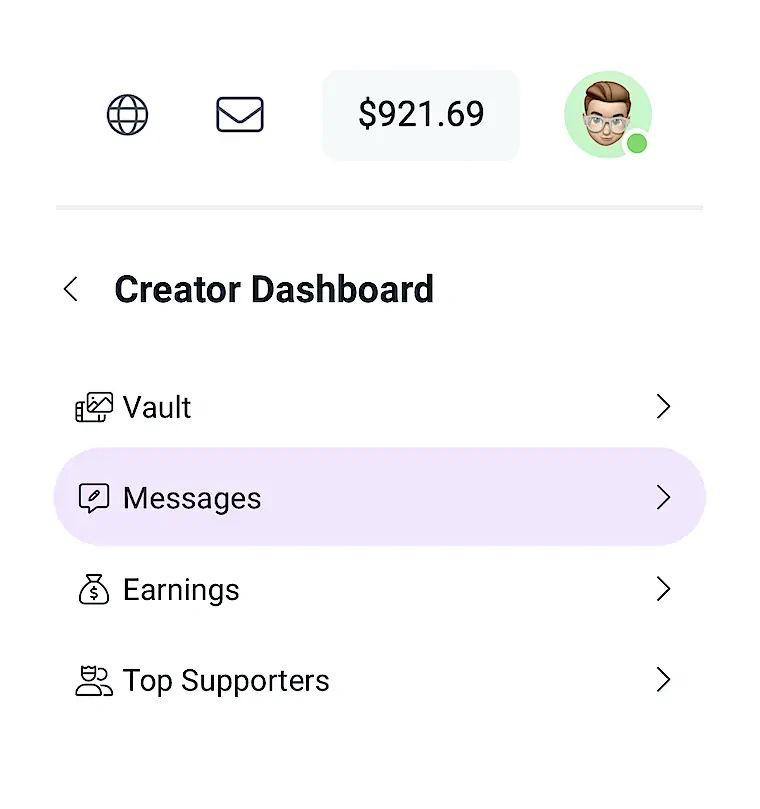
This method is effective for managing spam or suspicious links but requires manual input and monitoring.
1.2 Use Third-Party Moderation Tools
For creators managing large fan communities, third-party chat moderation tools can help filter URLs automatically. While Fansly does not natively support external moderation, using chat management software in combination with your Fansly workflow can help:
- Tools like Streamlabs Chatbot or Nightbot (commonly used for streaming platforms) can be adapted to filter text messages.
- Custom scripts can detect URL patterns and remove messages before they are displayed to the creator.
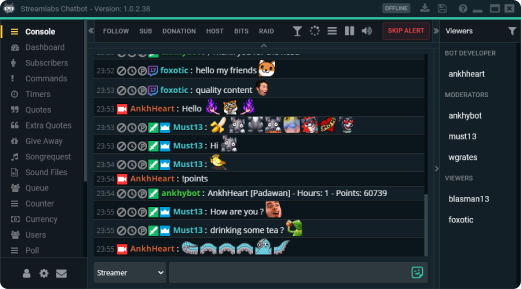
This method is ideal for high-volume chats where manual moderation is impractical.
1.3 Regularly Monitor and Moderate
Even with filters and education, some URLs may still appear. Manual monitoring ensures that suspicious or unwanted links are handled promptly:
- Regularly review your chat logs.
- Remove or report any messages containing unauthorized URLs.
- Consider appointing trusted moderators if your fanbase is large.
Manual moderation combined with automated filters creates the most reliable approach to controlling URLs in Fansly chat.
2. Bonus: Backup Fansly Media with Fansget
While controlling chat URLs is important, many creators and subscribers also want to ensure that media—images and videos shared on Fansly—is safely backed up. Fansly hosts exclusive content that could be lost if accounts are deleted or posts are removed. Fansget is a professional Fansly video and image downloader that allows bulk media backup efficiently.
Key Features of Fansget:
- Bulk Download: Download all videos and photos from a creator’s profile.
- High Quality: Retains the original resolution and format of media.
- Filter Options: Select specific types of media or specific posts for download.
- Multiple Format Outputs: Download videos and photos in popular MP4/MP3/PNG/JPG and other formats.
- Secure Login: Fansly credentials are safely managed within the software.
How to Use Fansget to Backup Fansly Media:
Step 1: Download and install Fansget for your operating system (Windows or Mac).
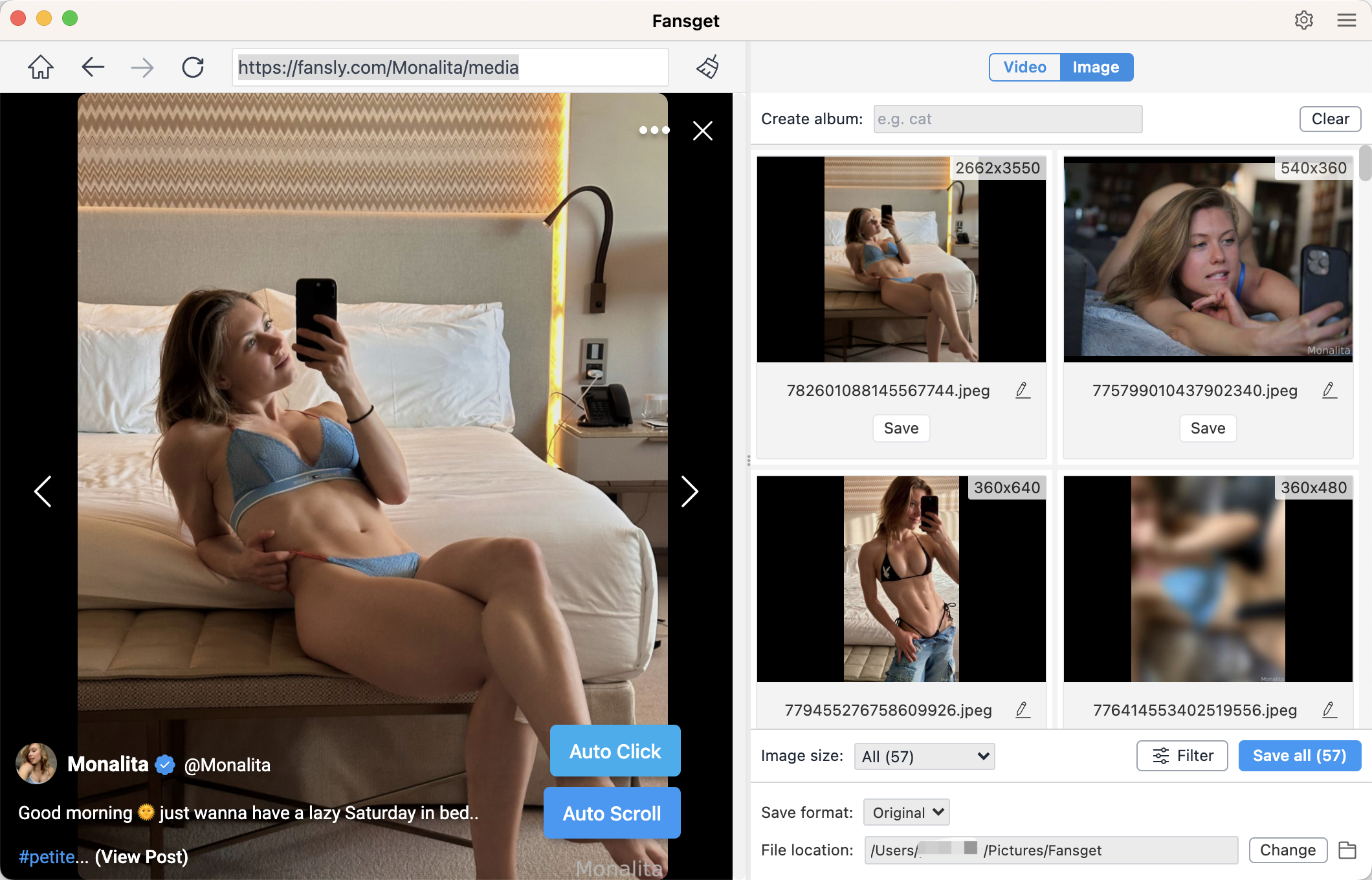
Step 2: Open Fansget and use the built-in browser to log in to your Fansly account.
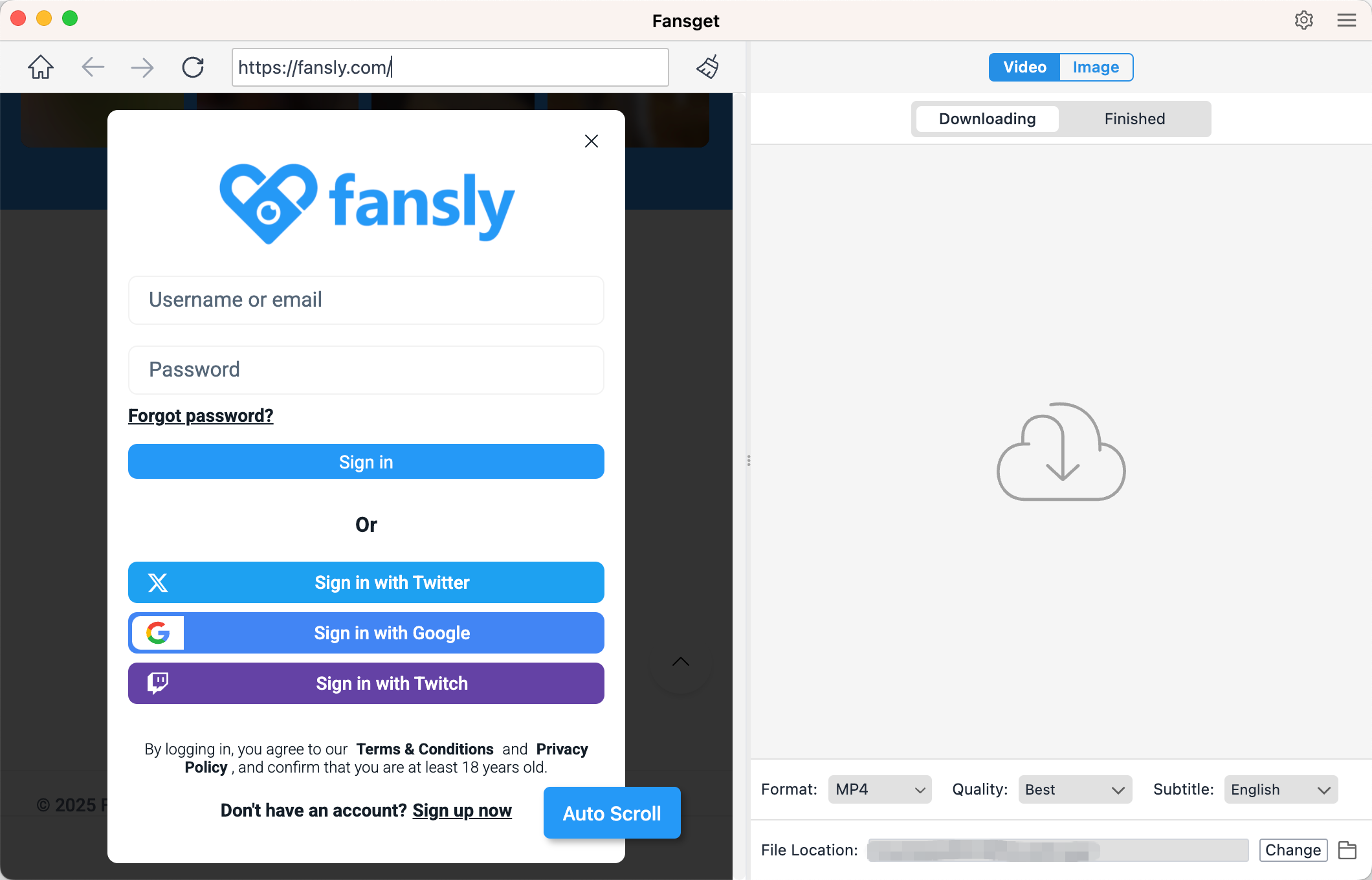
Step 3: To download Fansly videos, navigate to the creator’s profile, find and play the video you want to download, then click the download button, Fansget will download all the videos that added in the download queue.
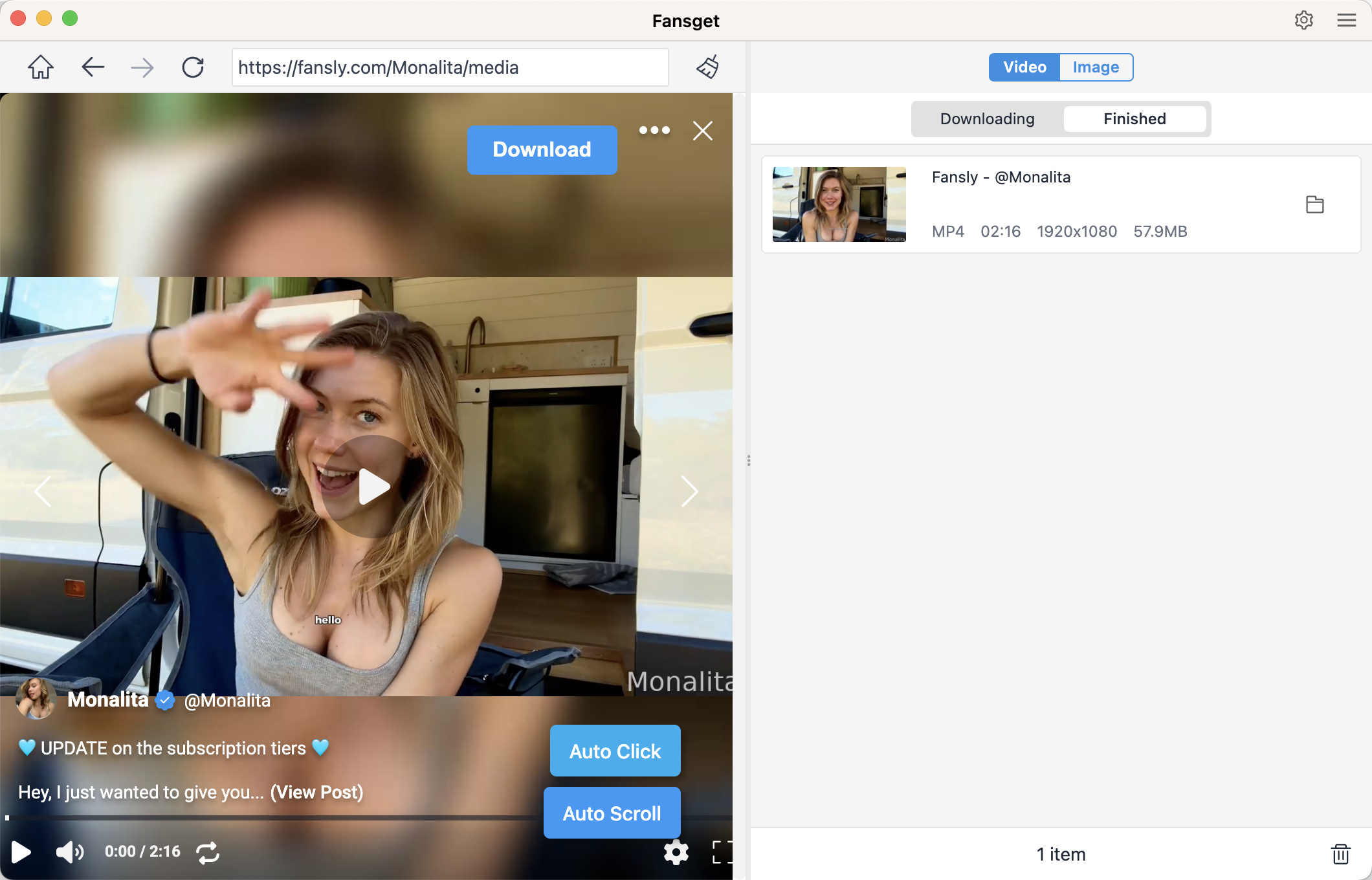
Step 4: TO download photos, scroll the page to extract files, next you can select the photos you want to download – either all or filtered by type, then click Save all and let Fansget save the files into the chosen folder.
3. Conclusion
Turning off URLs in Fansly chat is essential for maintaining a safe and clean communication environment. While Fansly does not provide a one-click option to block all URLs, creators can effectively manage links by using message filters, employing third-party moderation tools, and monitoring chats regularly.
For those who want to go a step further and preserve their Fansly media, Fansget provides a professional solution for backing up videos and images in bulk. Its bulk download capabilities, organized folders, and high-quality preservation make it an ideal companion for creators and subscribers alike.
By combining proper chat moderation with media backup through Fansget, you can ensure a safer, more enjoyable, and fully archived Fansly experience.