How to Find and See Deleted Twitter Posts?

Twitter, now rebranded as X, has become one of the world’s most active and fast-paced social media platforms. With millions of posts published every hour, users often delete tweets due to typos, controversial opinions, or privacy concerns. But sometimes, those deleted posts hold important context — whether it’s for fact-checking, journalism, or simply satisfying curiosity.
Unfortunately, once a tweet is deleted, X removes it from the platform’s servers, meaning you can’t view it through normal methods. In this guide, we will walk you through several reliable ways to find or view deleted Twitter posts.

1. How to Find and See Deleted Twitter Posts?
1.1 Use Google Cache
One of the simplest ways to view a deleted tweet is through Google Cache. Google temporarily stores cached versions of web pages, including tweets and profiles, so even if a post is deleted, the cached version may still exist.
Steps:
- Open Google browser and type the following search: site:twitter.com [username or keywords]
- Look for search results related to the deleted tweet.
- Click the small downward arrow next to the result (if available) and choose Cached.
If the tweet was deleted recently, Google Cache might still have it. However, cache data updates frequently, so older deleted tweets might no longer appear.
1.2 Check the Wayback Machine (Internet Archive)
The Wayback Machine at archive.org/web is a powerful online archive that periodically captures and stores snapshots of web pages, including Twitter profiles and tweets.
How to use it:
- Visit the Wayback Machine and paste the URL of the tweet or the Twitter profile link.
- Browse through the timeline of saved snapshots.
- Click on an archived date to see how the tweet or profile looked at that moment.
This method is especially useful for high-profile accounts or viral tweets, which are more likely to have been archived automatically. Even if the tweet is deleted, an archived copy might still be available.
1.3 Search for Screenshots or Retweets
Even if a tweet is deleted, it might have been screenshot, quoted, or reposted by other users before removal.
Try these approaches:
- Search X for the tweet’s exact wording or keywords.
- Use Google Images with the username or tweet content to find screenshots.
- Check Reddit communities like r/OutOfTheLoop or r/SavedYouAClick, which often share deleted or controversial tweets.
This method isn’t guaranteed, but if a deleted post went viral, it’s very likely someone saved it before deletion.
1.4 Use Tweet Archiving or Tracking Tools
Several third-party tools exist to track and preserve deleted tweets, particularly from public figures, journalists, and organizations.
Examples include:
- PolitiTweet – archives deleted tweets from politicians.
- Wayback Machine Twitter feeds – automated bots that archive popular or trending tweets.
- Thread Reader App – unrolls and saves Twitter threads, sometimes retaining copies even after deletion.
These archives are especially useful for journalists and researchers who need to access deleted content for analysis or verification.
1.5 Use Your Own Twitter Data Archive
If you’re the one who deleted the tweet, you can still access it through your Twitter data archive.
Steps:
- Log in to X and go to Settings → Your Account → Download an Archive of Your Data.
- Request your data and wait for X to prepare it.
- Once received, unzip the archive and open the file tweets.js.
This file contains all your tweets (even deleted ones) in JSON format, so you can still access your post text, links, and media.
1.6 Check Cached Pages or Search Engines
If Google Cache doesn’t work, try alternative cache or archive viewers such as:
- CachedView.com
- TimeTravel.mementoweb.org
- Bing Cache (similar to Google Cache but updated at different intervals)
Simply enter the Twitter post or profile URL and check whether a snapshot exists. These services combine multiple cache sources to increase your chances of finding older deleted posts.
1.7 Use Nitter or RSS Feeds
Nitter is an open-source front-end for Twitter that allows you to browse tweets without logging in. Some Nitter instances automatically cache tweets and media.
You can even subscribe to an account’s RSS feed, letting you keep track of new tweets or save them automatically before deletion.
How to use Nitter:
- Replace “twitter.com” with “nitter.net” in the URL.
Example: https://twitter.com/username/status/1234 → https://nitter.net/username/status/12345 - If cached, you might still see deleted tweets.
2. Bonus: Backup Twitter Content with Xget
Finding deleted tweets can be difficult, but you can prevent data loss entirely by backing up your favorite content before it disappears. That’s where Xget comes in — a smart, bulk downloader designed for Twitter/X videos, images, and entire profile backups. It’s perfect for users who want to preserve media content, archive tweets, or manage collections offline.
Key Features of Xget:
- Download multiple videos or photos at once.
- Preserve content in original quality without compression.
- Choose to download desired photos based on resolutions or formats.
- Convert media into popular video/audio/photo formats.
- User-friendly interface for quick operation.
How to Use Xget:
Step 1: Install and launch Xget on your device (Windows or MacOS).
Step 2: Visit x.com within Xget, then open the page containing the content you want to save.
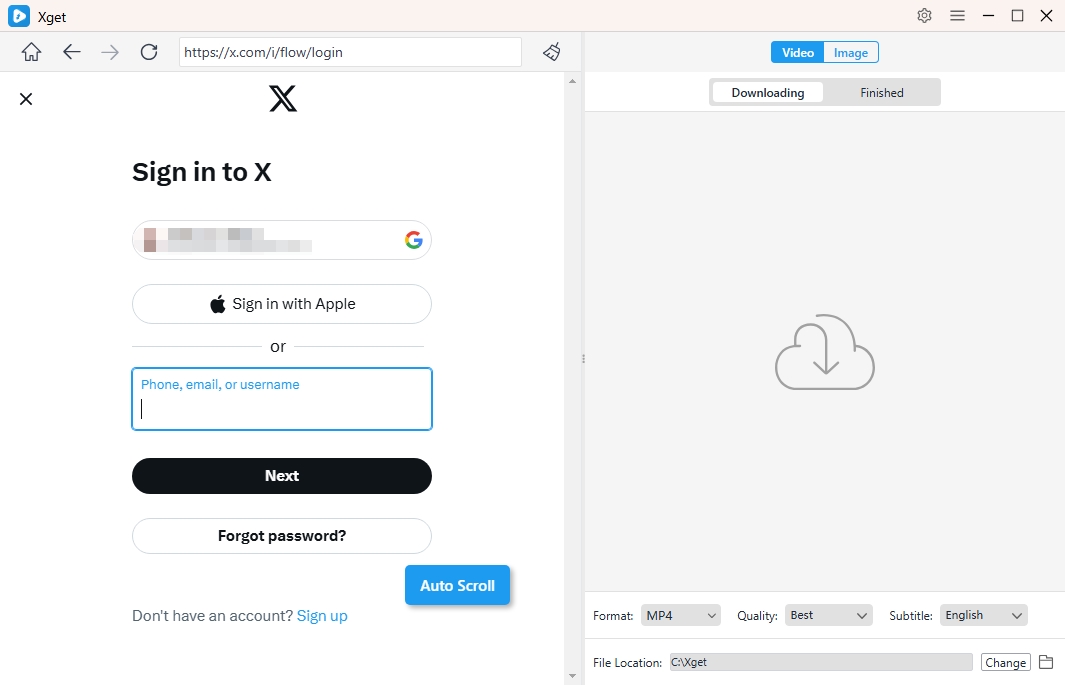
Step 3: To download X videos, locate and play the video, then choose your download options (video quality, media type, output folder), click the download button and Xget will start downloading all the videos added in the download list.
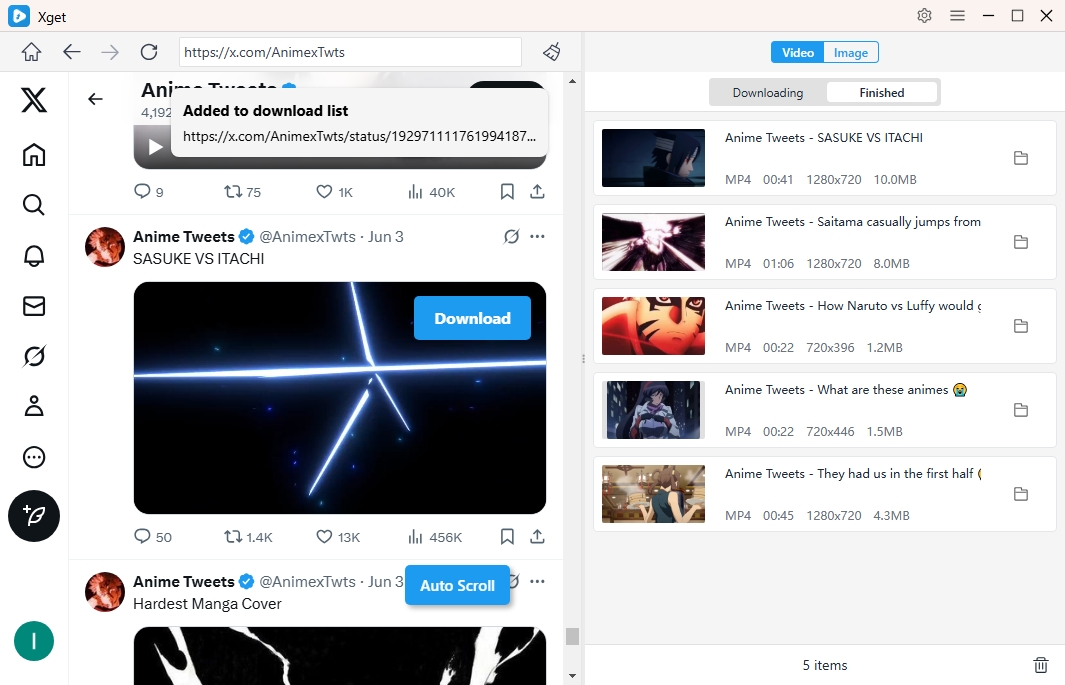
Step 4: To download photos, let Xget scroll the page to extract the original files, then you can filter and download chosen photos in bulk.

3. Conclusion
Finding deleted tweets isn’t always easy, but thanks to tools like Google Cache, the Wayback Machine, and archiving platforms, it’s often possible to recover or view older posts. However, these methods depend on luck and timing — once a tweet is gone from the web, it may never be fully restored.
That’s why the smartest solution is to proactively back up Twitter/X content using Xget. With its bulk downloading, HD quality support, and media organization features, Xget ensures you never lose valuable posts, photos, or videos again.
🔹 In summary: You can search for deleted tweets through archives and caches — but with Xget, you can secure every tweet before it’s gone.