How to Use Advanced Twitter Search?

Twitter/X is one of the most powerful platforms for discovering real-time information, trends, and conversations. With millions of tweets posted daily, finding specific content can feel overwhelming—unless you know how to use Advanced Twitter Search. This built-in feature allows users to filter tweets by keywords, accounts, dates, engagement metrics, and more, helping you uncover exactly what you’re looking for.
Whether you’re a marketer researching brand mentions, a journalist tracking breaking news, or a casual user searching for old tweets, mastering Advanced Twitter Search can save you hours of scrolling. In this guide, we’ll walk through how to use Advanced Twitter Search step by step, explain practical use cases, and finish with a bonus tip on how to back up Twitter/X media in bulk.
1. How to Use Advanced Twitter Search?
1.1 What Is Advanced Twitter Search?
Advanced Twitter Search is a feature that lets you fine-tune your searches using specific filters. Unlike the standard search bar, which shows broad results, Advanced Search gives you precision control over:
- Keywords and phrases
- Specific accounts
- Date ranges
- Language
- Engagement levels (likes, replies, retweets)
It’s especially useful for finding old tweets, viral posts, or niche discussions that would otherwise be buried.
1.2 How to Access Advanced Twitter Search?
There are two easy ways to access it:
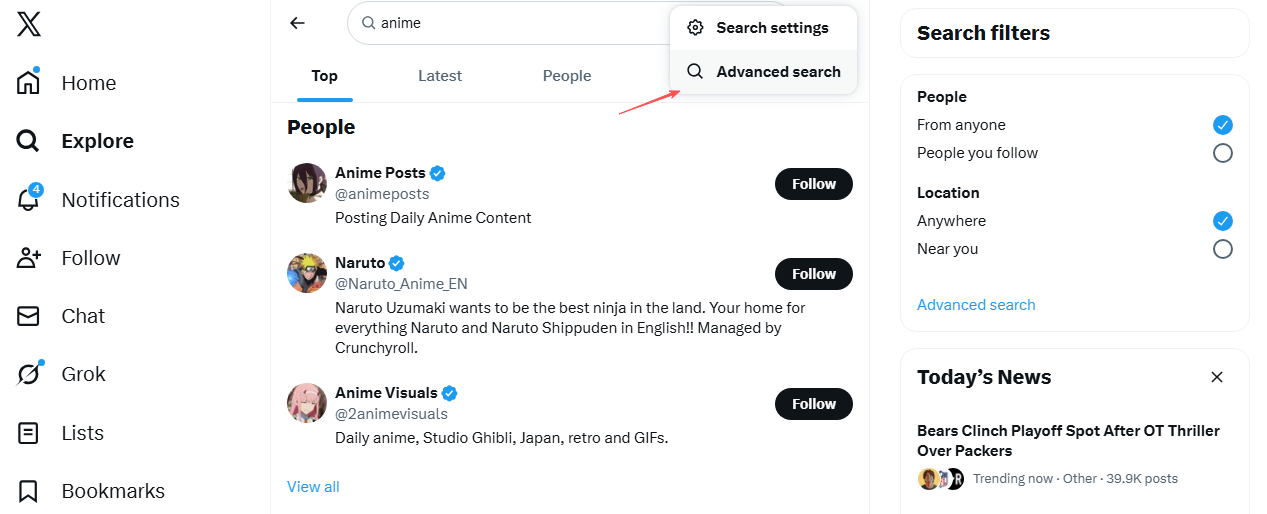
Method 1: From Twitter/X Directly
- Go to Twitter/X and enter any keyword in the search bar.
- Click the three-dot menu next to the search filters.
- Select Advanced search.
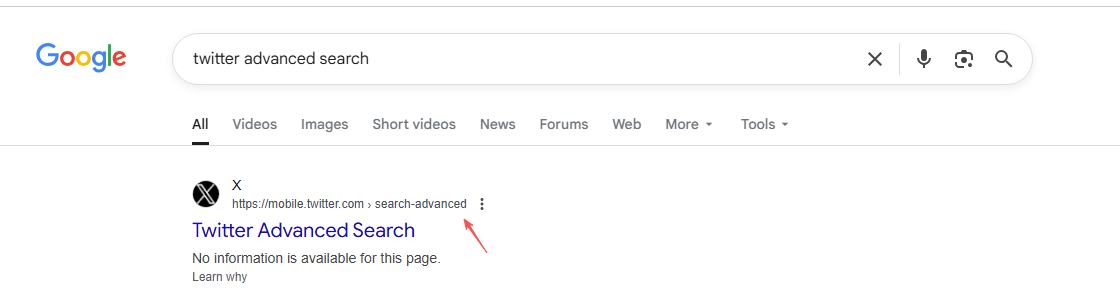
Method 2: Direct URL
You can also visit the Advanced Search page directly by searching “Twitter Advanced Search” in your browser while logged in.
1.3 Using Keywords and Phrases
The Words section is the foundation of Advanced Search.
- All of these words: Tweets must include all specified words.
- This exact phrase: Finds tweets with an exact match (useful for quotes or slogans).
- Any of these words: Tweets can include one or more of the listed terms.
- None of these words: Excludes unwanted keywords.
Example:
To find tweets about video downloading but not TikTok, include “download video” and exclude “TikTok.”
1.4 Searching Tweets From Specific Accounts
The Accounts section lets you target tweets from or mentioning specific users.
- From these accounts: Tweets posted by specific usernames.
- To these accounts: Tweets replying to a user.
- Mentioning these accounts: Tweets that include a specific username anywhere in the text.
Example:
To find announcements from a brand, enter its username in “From these accounts.”
1.5 Filter by Replies and Links
You can refine results further by selecting:
- Only show replies
- Exclude replies
- Only show tweets with links
This is helpful if you’re researching shared articles, videos, or promotional posts.
1.6 Filter by Engagement (Likes, Replies, Retweets)
Advanced Search allows you to find popular tweets by setting minimum engagement numbers:
- Minimum replies
- Minimum likes
- Minimum retweets
Example:
Use “Minimum likes: 1,000” to surface viral tweets on your chosen topic.
This is particularly useful for:
- Trend analysis
- Content inspiration
- Finding high-impact media posts
1.7 Search Tweets by Date Range
The Dates section lets you find tweets from a specific time period.
- From: Start date
- To: End date
This is one of the most powerful features, especially for finding:
- Old tweets
- Historical reactions to events
- Deleted or hard-to-find media posts (if still indexed)
Example:
Find tweets about a product launch from January 2022 to March 2022.
1.8 Search by Language
If you want tweets in a specific language, use the Language filter. This is especially helpful for international research or filtering out irrelevant content.
2. Bonus: Back Up Twitter/X Media in Bulk with Xget
While Advanced Twitter Search helps you find tweets, it doesn’t let you save or back up media in bulk, this is where Xget comes in. Xget is a professional bulk Twitter/X video and image downloader designed for users who want to archive or back up media efficiently.
Key benefits of Xget include:
- Bulk download Twitter/X videos and images
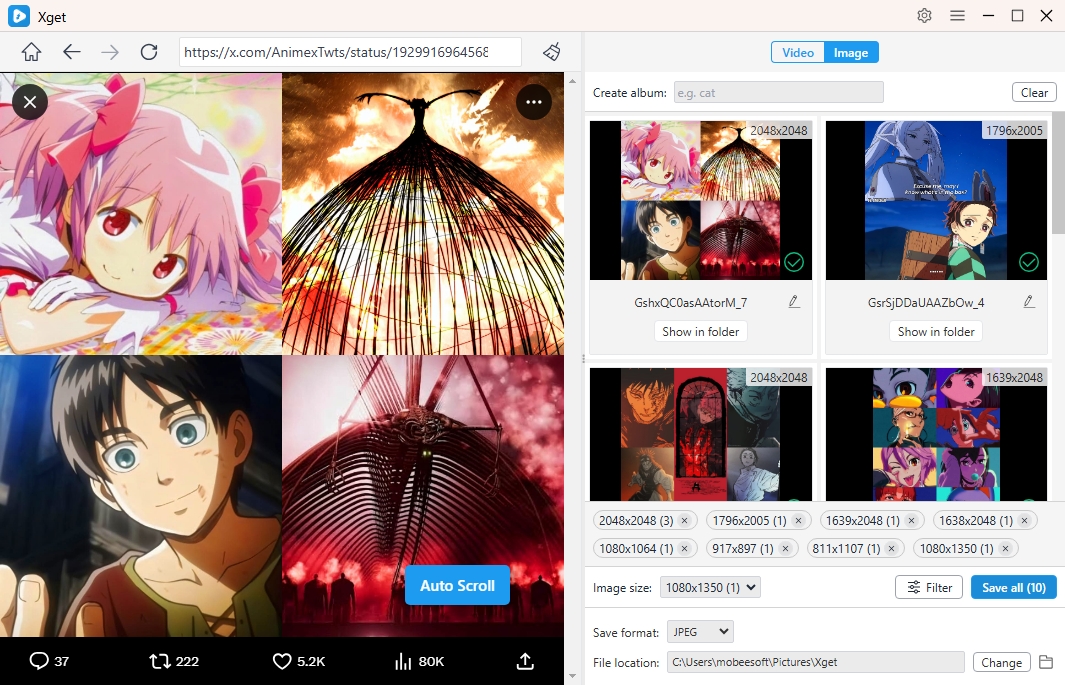
- Scroll page to extract all available images from a page
- Filter images by choosing their types and resolutions
- Download Twitter/X media in popular video/audio/images formats.
- Work on both Windows and Mac.
Step-by-Step Guide: Backing Up Twitter Videos and Images with Xget
- Install Xget from its official website, then open the app and log in to your Twitter/X account.
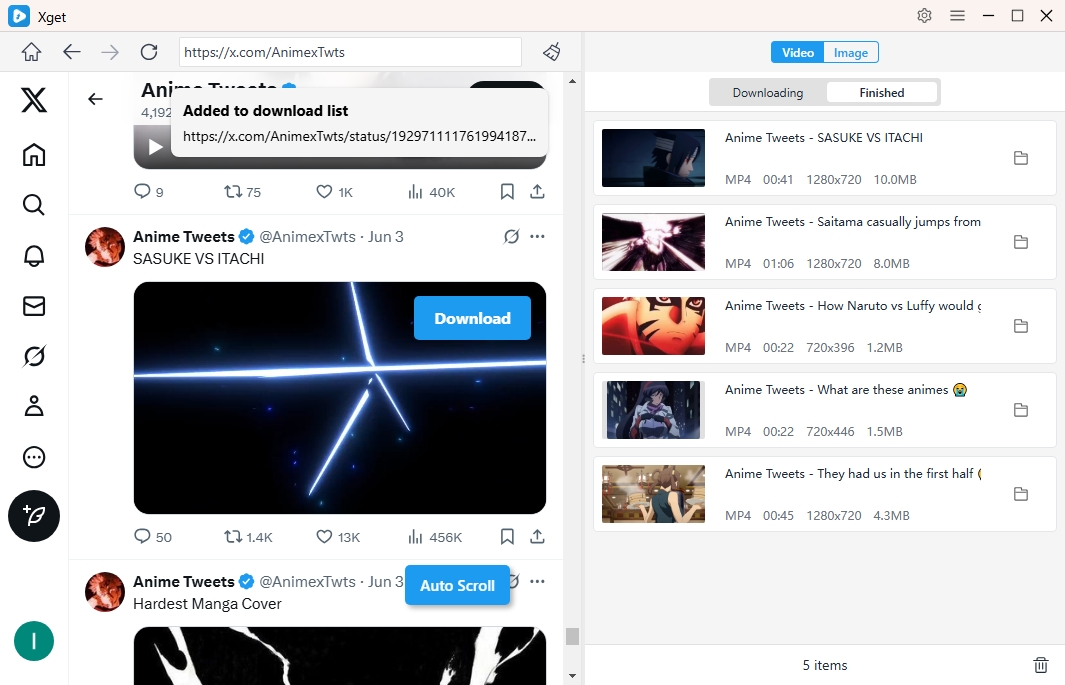
- To download Twitter/X videos, find and play the video, choose your preferred format, resolution, and save location, click the Download button and Xget will complete the download in seconds.
- To download images, scroll through the page so Xget can detect available images, then filter your selections and download all chosen images with one click.
3. Conclusion
Advanced Twitter Search is one of the most underrated tools on Twitter/X. By learning how to filter tweets by keywords, accounts, engagement, and dates, you can quickly uncover valuable content that would otherwise be lost in the noise.
However, finding content is only half the job. If you want to save, archive, or back up Twitter/X media efficiently, manual downloads aren’t enough. That’s why Xget is the perfect companion to Advanced Twitter Search. With its bulk downloading capabilities, original-quality output, and user-friendly workflow, Xget is the best solution for anyone serious about preserving Twitter/X videos and images.
If you regularly search Twitter/X for valuable media, Xget is the tool you’ll want to rely on.