Insget | User Guide
Contents
Insget is a powerful tool for downloading media in bulk from Instagram. Whether you want to save all photos and videos from a user, download reels or hightlights, or archive content from hashtags, Insget makes the process fast, simple, and efficient.
1. Download and Install Insget
1.1 Download Insget
Click the Free Download button to get the latest version of Insget for Windows or Mac.
1.2 Install Insget
For Windows:
- Double-click the downloaded insget.exe file to start the installer.
- Follow the on-screen instructions and select your preferred installation folder.
- Once installed, launch Insget from the desktop and explore the interface.
For macOS:
- Open the insget.dmg gile.
- Drag the Insget app into the Applications folder.
- Launch the app and grant any permissions requested by macOS.
2. Get Started with Insget
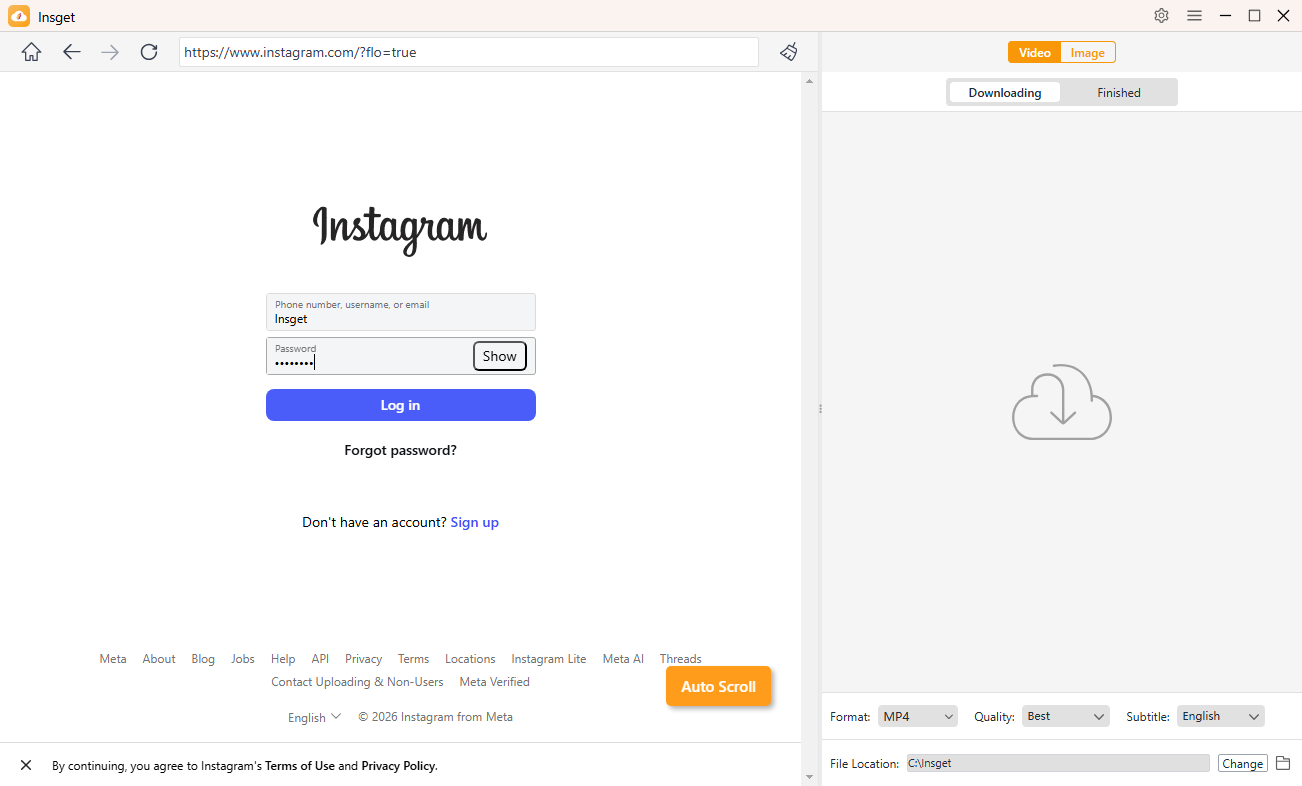
Open Insget and log in with your Instagram account if needed to access private profiles or content.
3. Bulk Download Videos from Instagram
3.1 Set Your Preferences
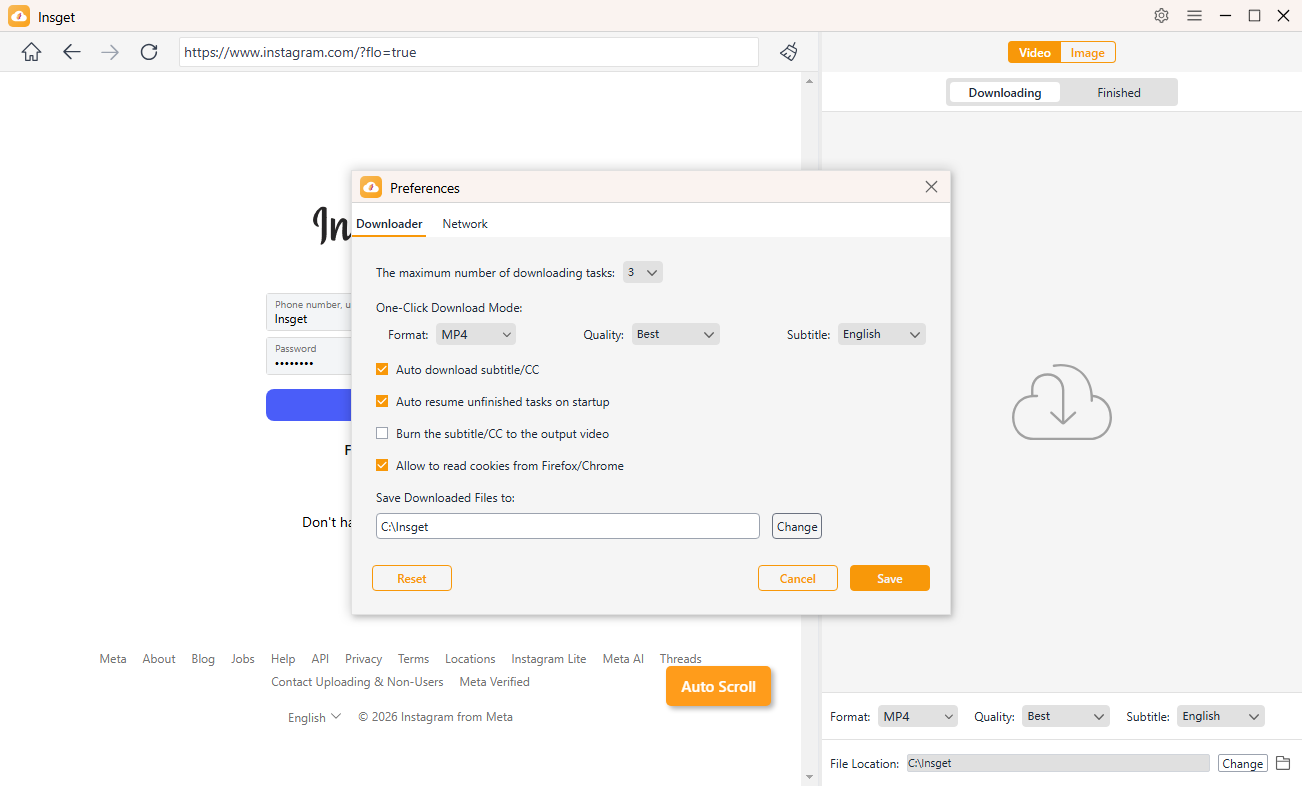
Before downloading, go to Preferences to customize your settings:
- Video quality and format
- Download speed and limits
- Save location and more parameters
3.2 Download Videos in Bulk
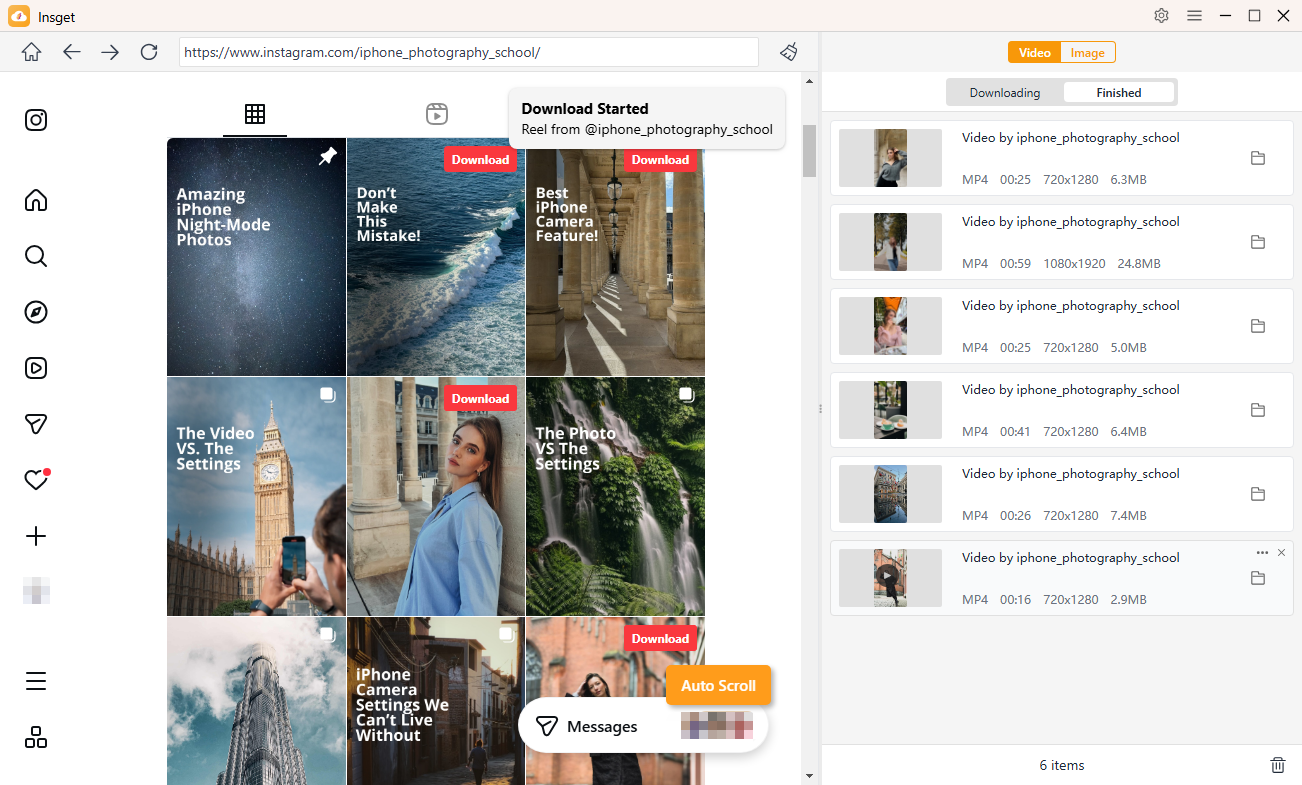
- Find the video you want to download on Instagram.
- Click the Download button provided by Insget.
- Insget will automatically extract the video URL and add it to your download list.
- Track all downloads in the interface and find completed videos under the Finished tab.
4. Bulk Download Photos from Instagram
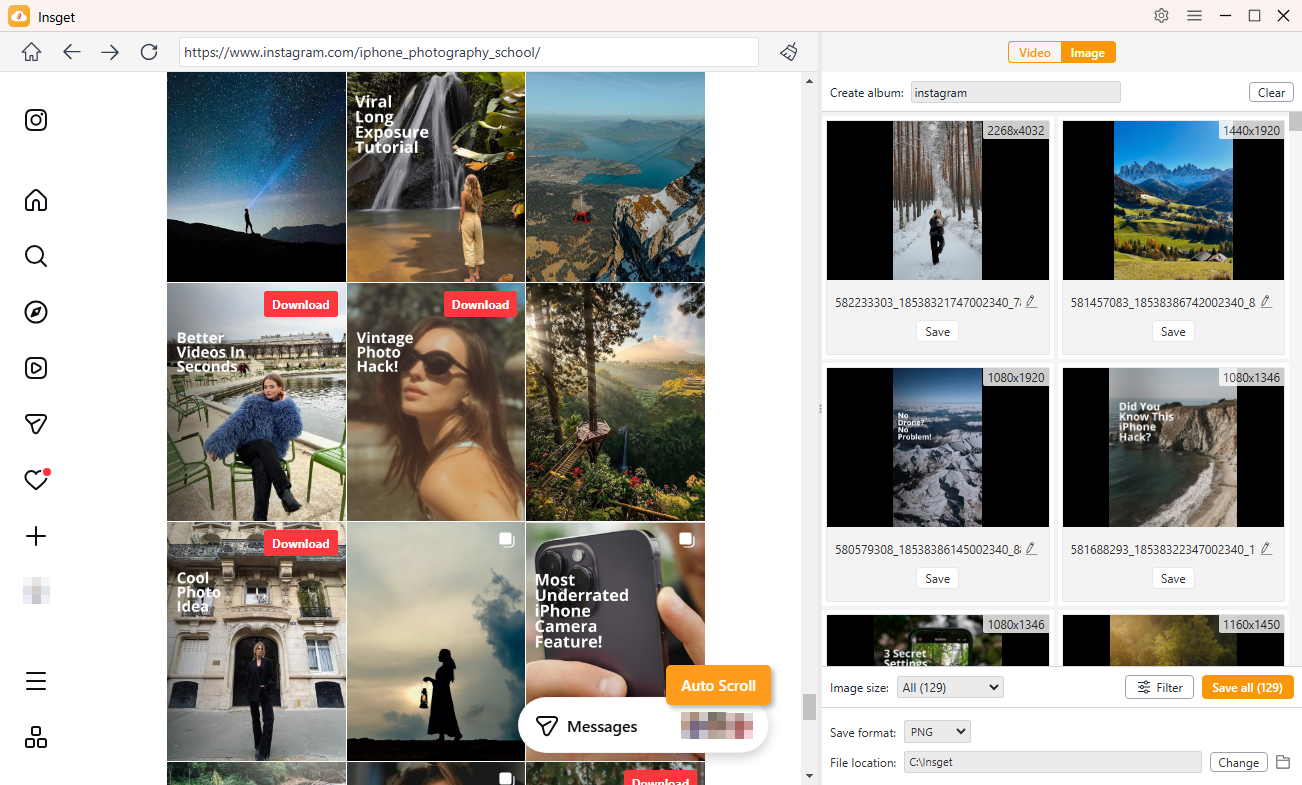
- Open the page or profile containing the photos you want to save.
- Scroll the page, Insget will scan the page and display all downloadable photos.
- Filter photos by resolution, format, or other preferences.
- Set download options, such as output folder, file naming, and album organization.
- Click Save All, and Insget will download all selected photos from Instagram in seconds.