How Do You Delete All Facebook Posts?

Over time, your Facebook profile can accumulate hundreds or even thousands of posts—status updates, shared links, photos, videos, and comments. While these posts help document memories and interactions, there may come a time when you want to clean up your profile. Some users want a fresh start before a job search, others wish to remove outdated opinions, and many simply want to reduce their digital footprint.
If you are wondering how to delete Facebook posts, the process is relatively simple for individual posts. However, deleting all Facebook posts at once can be more challenging because the platform does not provide a single “delete everything” button. Instead, you must rely on Facebook’s built-in management tools or manual deletion.
In this guide, we’ll explain how to delete a single Facebook post, how to delete multiple or all Facebook posts, and how to safely back up your media before removing them.
1. How Do You Delete a Post on Facebook?
Deleting a single post on Facebook only takes a few seconds. This method works whether you’re using the Facebook website on a computer or the mobile app.
Steps to delete a Facebook post:
- Log in to your Facebook account.
- Go to your profile page.
Click your name or profile picture to open your timeline. - Find the post you want to delete.
Scroll through your timeline until you locate the specific post. - Click the three-dot menu (⋯).
This option appears in the top-right corner of the post. - Select “Move to Trash” or “Delete.”
- Confirm your action.
Facebook will prompt you to confirm that you want to delete the post.
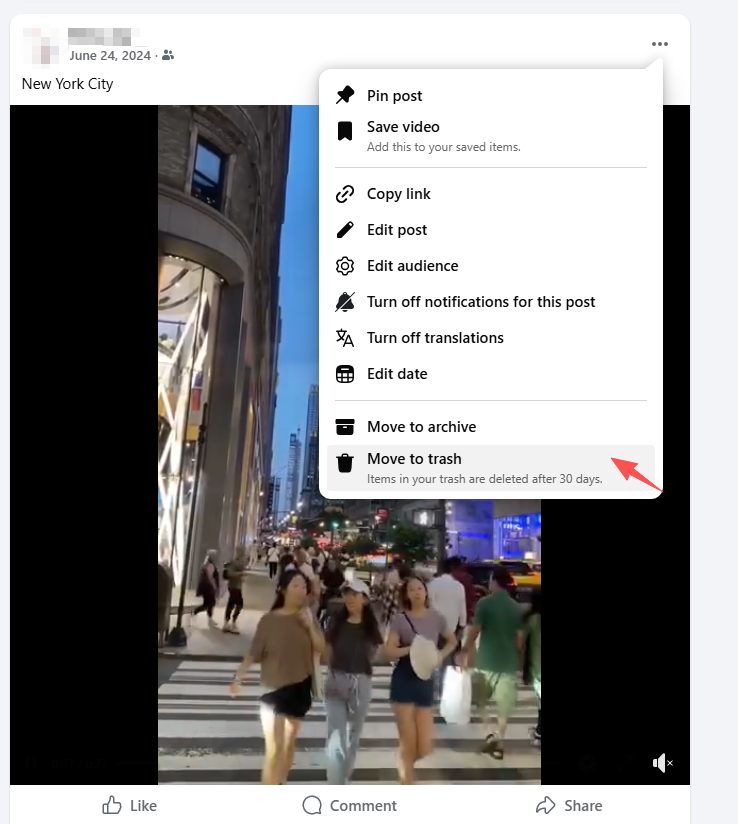
Once confirmed, the post is removed from your timeline. Facebook usually places deleted posts in the Trash folder for about 30 days, allowing you to restore them if needed before they are permanently erased.
Important notes:
- Deleting a post removes it from your profile and your friends’ feeds.
- If the post includes photos or videos, they may still remain in your media albums unless removed separately.
- Deleted posts cannot be recovered after the trash period expires.
If you only need to remove a few posts, this method is the fastest and easiest solution.
2. How Do You Delete All Facebook Posts?
If you want to remove a large number of posts, deleting them one by one can be extremely time-consuming. Fortunately, Facebook provides a feature called Activity Log that allows you to manage multiple posts more efficiently.
Method 1: Use Facebook Activity Log
The Activity Log is the primary tool for reviewing and managing your Facebook activity.
Steps to delete multiple posts
- Open Facebook and go to your profile.
- Click the “Manage Posts” button.
On the mobile app, this appears near your timeline posts. - Use filters to narrow results.
You can filter posts by:- Date
- People
- Categories (posts, photos, tags, etc.)
- Select multiple posts.
Tap or click the checkbox next to each post you want to delete. - Click “Next” > Choose “Move to Trash” and confirm deletion.
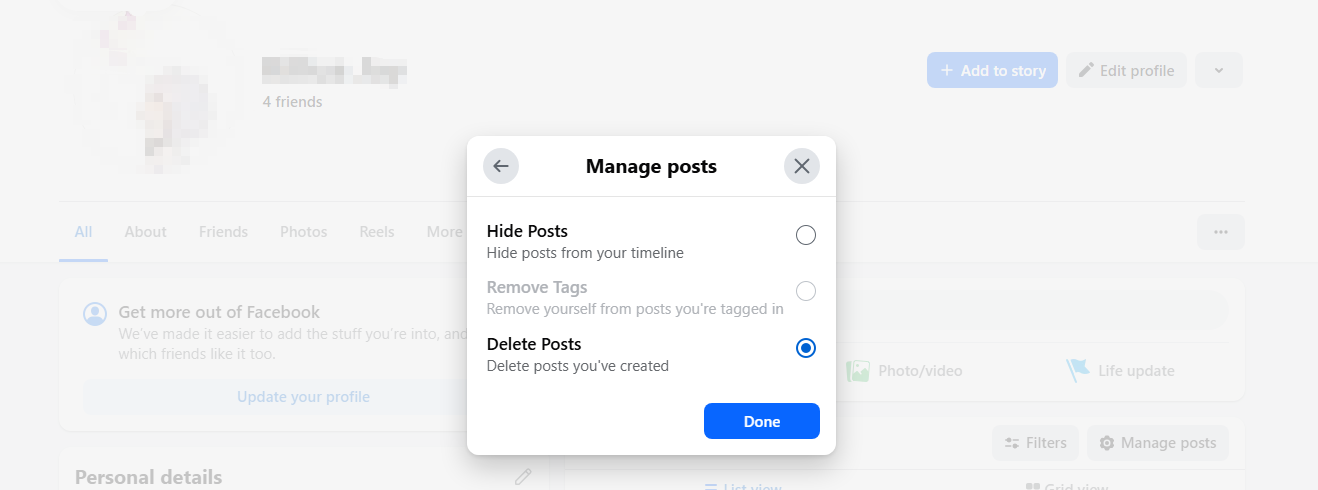
This method allows you to delete multiple posts at once, making it much faster than deleting each post individually.
Method 2: Use Activity Log Filters
Another approach is to remove posts based on categories.
Steps:
Go to Settings & Privacy > Click Activity Log > Choose Your Facebook Activity > Select Posts, Photos and Videos, review and delete items in bulk.
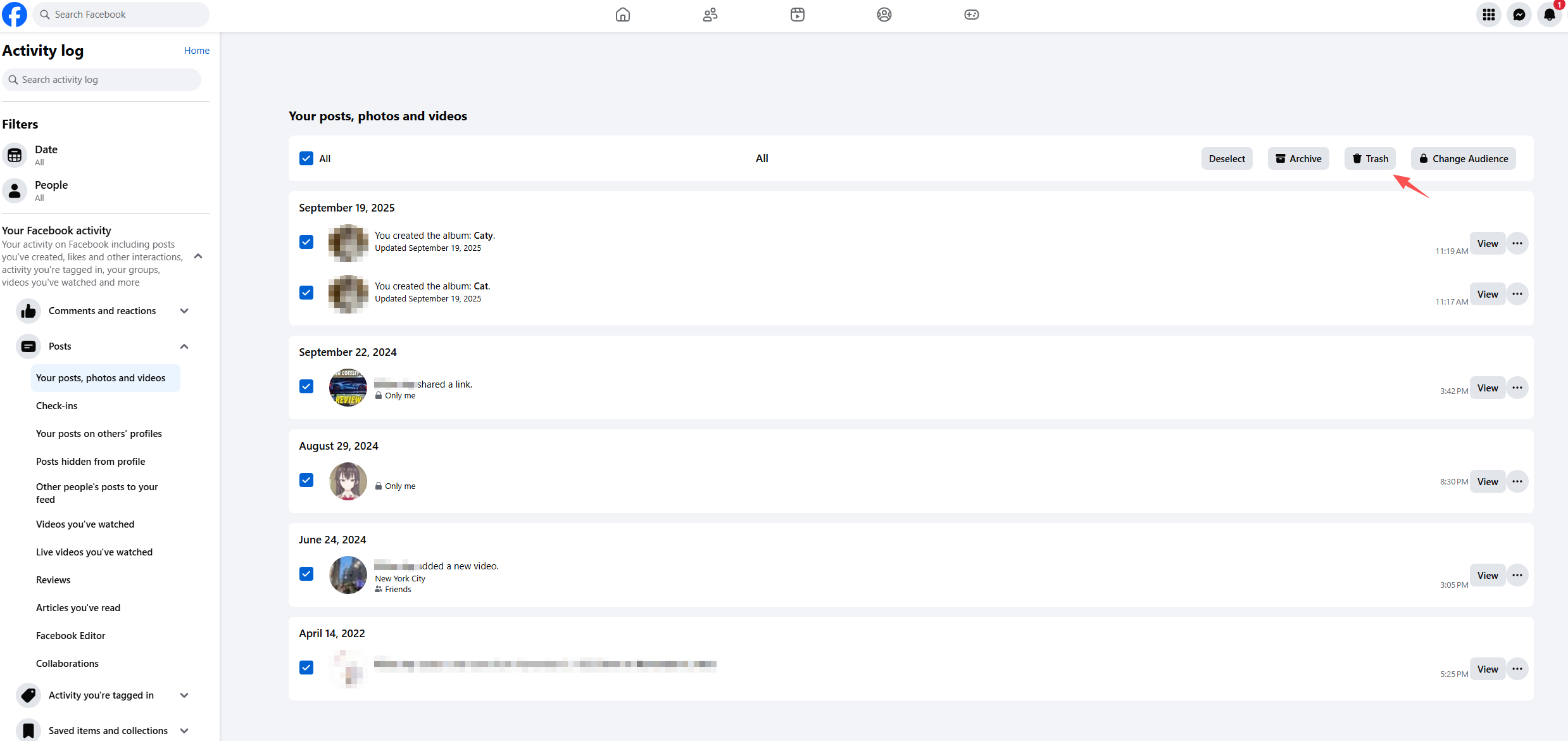
Using filters makes it easier to remove specific types of content, such as old status updates or shared links.
Method 3: Delete Posts by Year
If your goal is to wipe your timeline clean, you can delete posts year by year.
Steps include:
Open Activity Log > Filter posts by Year > Select all posts within that year and move them to trash.
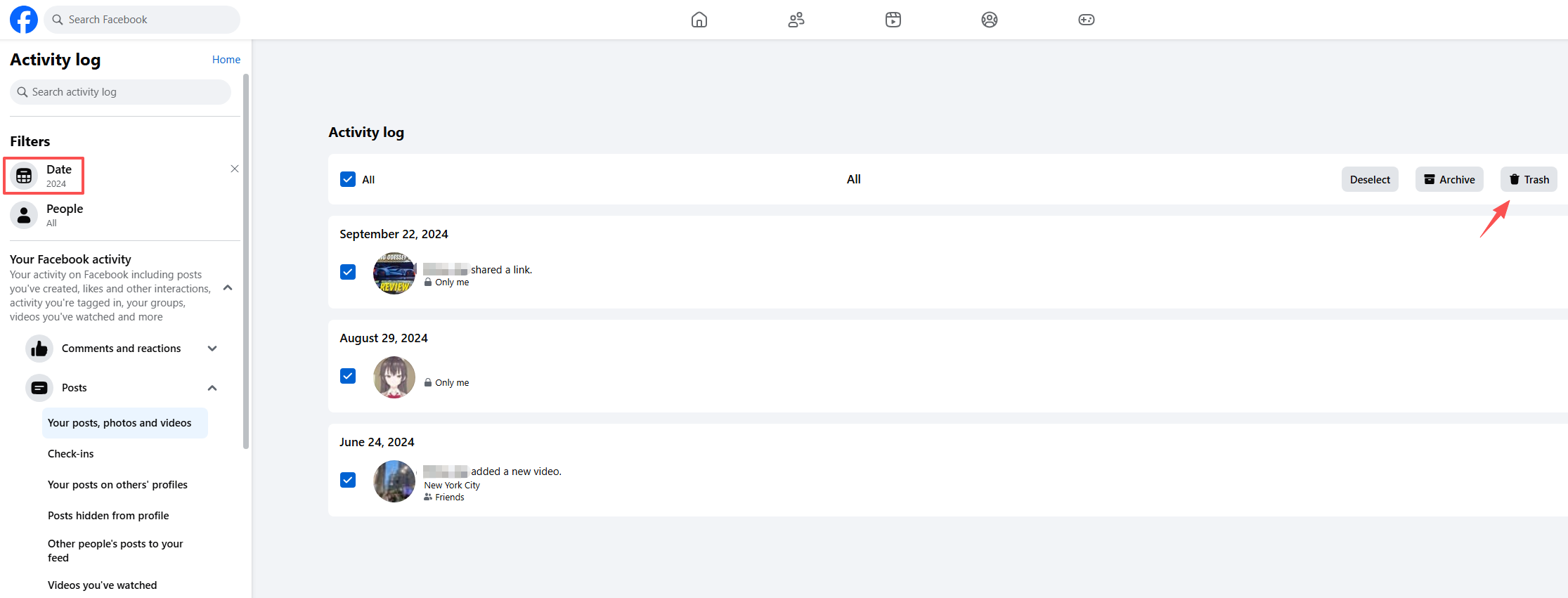
While this still requires some manual effort, it dramatically reduces the time needed to clean up your profile.
Limitations of Facebook’s tools
Even with Activity Log, Facebook still has limitations:
- No true “delete all posts” button
- Bulk deletion may be limited
- Older posts may require scrolling to locate
- Media content might still exist in albums
Because of these limitations, it’s a good idea to back up your important content before deleting everything.
3. Bonus: Back Up Facebook Media with Faceget
Before deleting your Facebook posts, many users want to save important photos or videos. Once posts are deleted permanently, the media can be difficult or impossible to recover. This is where Faceget becomes useful.
Faceget is a powerful tool designed to help users download and back up Facebook media quickly and efficiently. Instead of saving photos one by one, Faceget allows you to download large amounts of content from Facebook profiles, albums, or pages.
How to back up Facebook media with Faceget:
Step 1: Install the Faceget application on your computer (works on Windows and macOS).
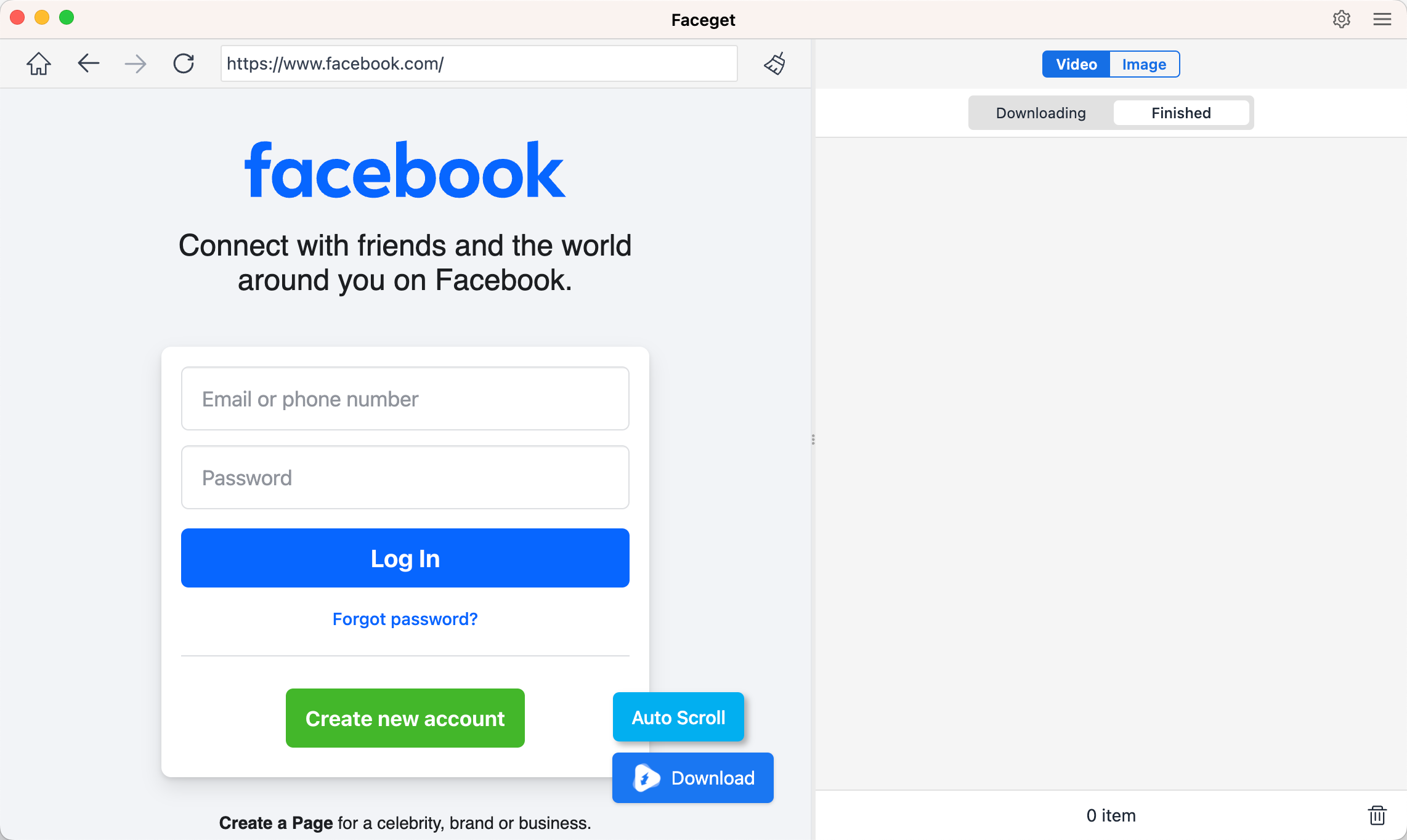
Step 2: Run Faceget, navigate to Facebook, and enter your login details to access the available media.
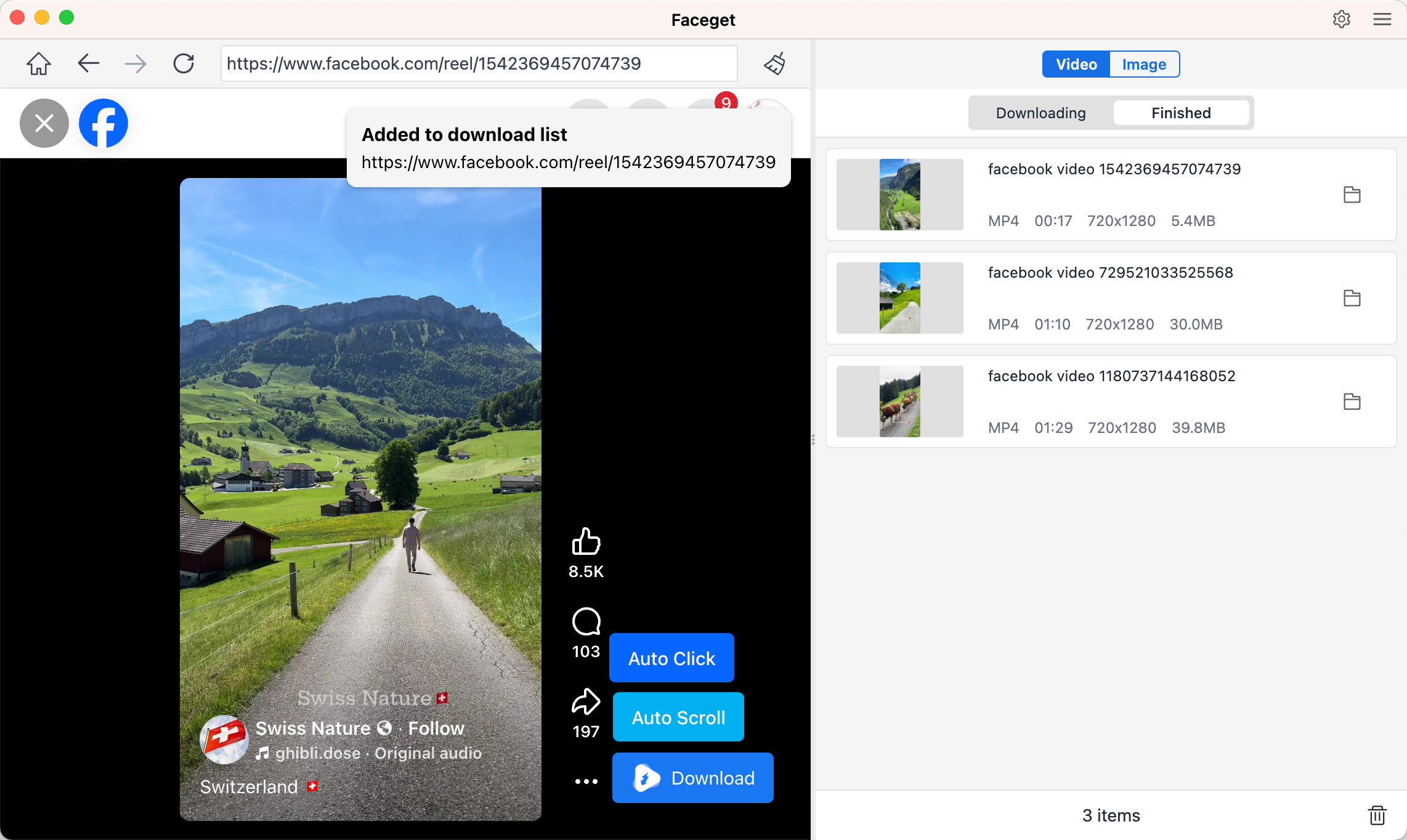
Step 3: To bak up Facebook videos, simply find the video, set the output format and resolution, and press Download. Faceget will begin downloading all videos that have been added to the download queue.
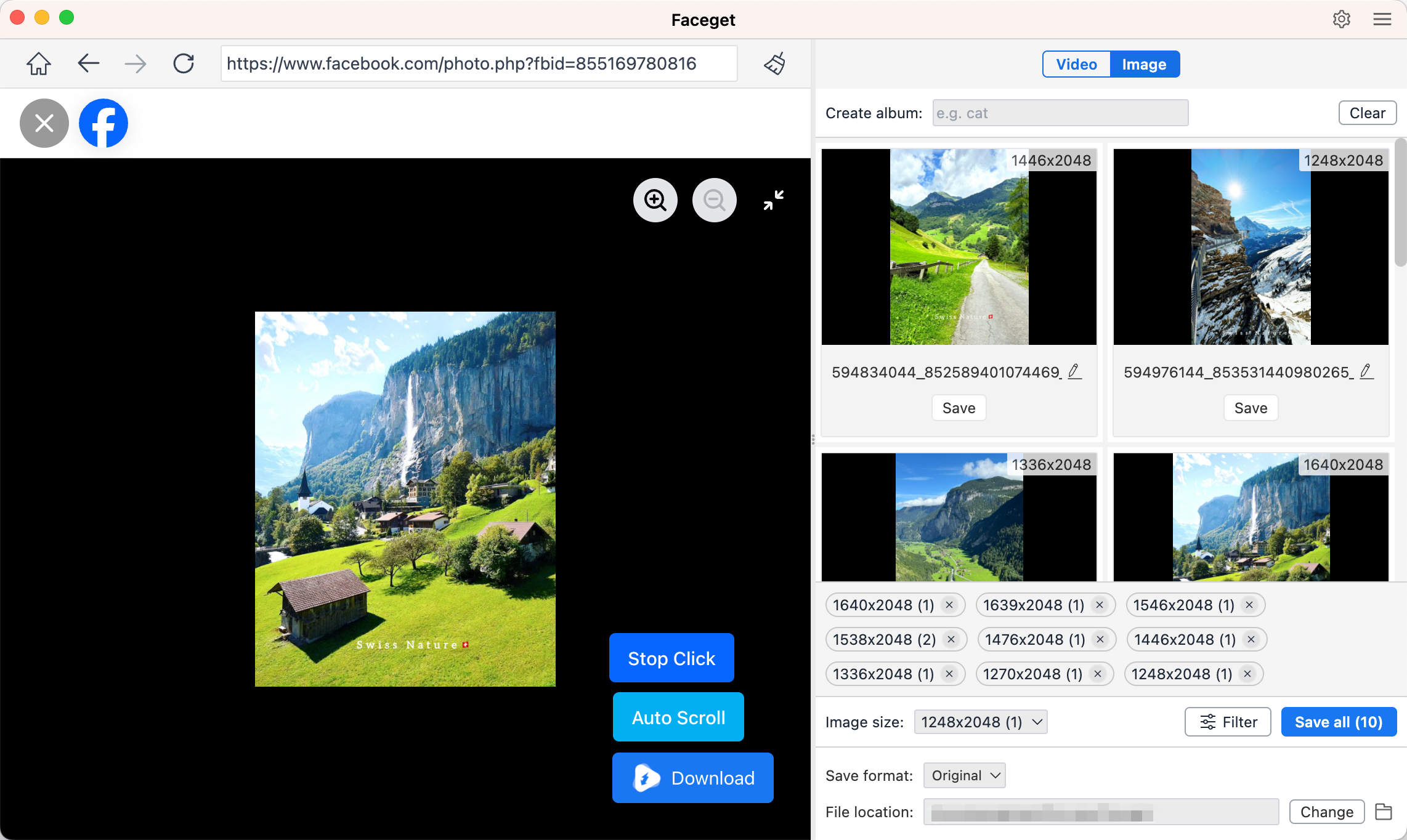
Step 4: To back up Facebook photos, let Faceget automatically click through the page to detect all image files. Then filter the photos you want and download them in bulk.
4. Conclusion
Managing your Facebook timeline is an important step in maintaining your online presence and privacy. Whether you want to remove a single post or clean up years of content, Facebook provides several tools to help you manage your activity.
Deleting a single post is quick and easy using the three-dot menu on each post. For larger cleanups, the Activity Log and Manage Posts features allow you to delete multiple posts in batches. However, because Facebook does not offer a true “delete all posts” option, the process may still require some manual work.
Before removing your posts permanently, it’s always wise to back up your photos and videos. Using tools like Faceget makes it simple to download and preserve your Facebook media in bulk, ensuring you don’t lose valuable memories during the cleanup process.
If you’re planning to reset your timeline or simply organize your digital life, Faceget offers a reliable way to secure your Facebook media before deleting posts, making the process safer and much more convenient.