How to Use the Fansly Scraper to Download from Fansly?

Fansly hosts a wide range of creator content, including videos, images, stories, messages, and livestreams. If you have legitimate access to media and want to save it for personal offline viewing or backup, downloading files individually can quickly become tedious—especially when dealing with a large subscription library.
That is where a Fansly downloader can help. One option is Fansly Scraper, an open-source tool designed for downloading and archiving Fansly content. This guide explains what Fansly Scraper is, how to use it, its advantages and disadvantages, and introduce a better choice for convenient Fansly bulk downloads.
1. What Is Fansly Scraper?
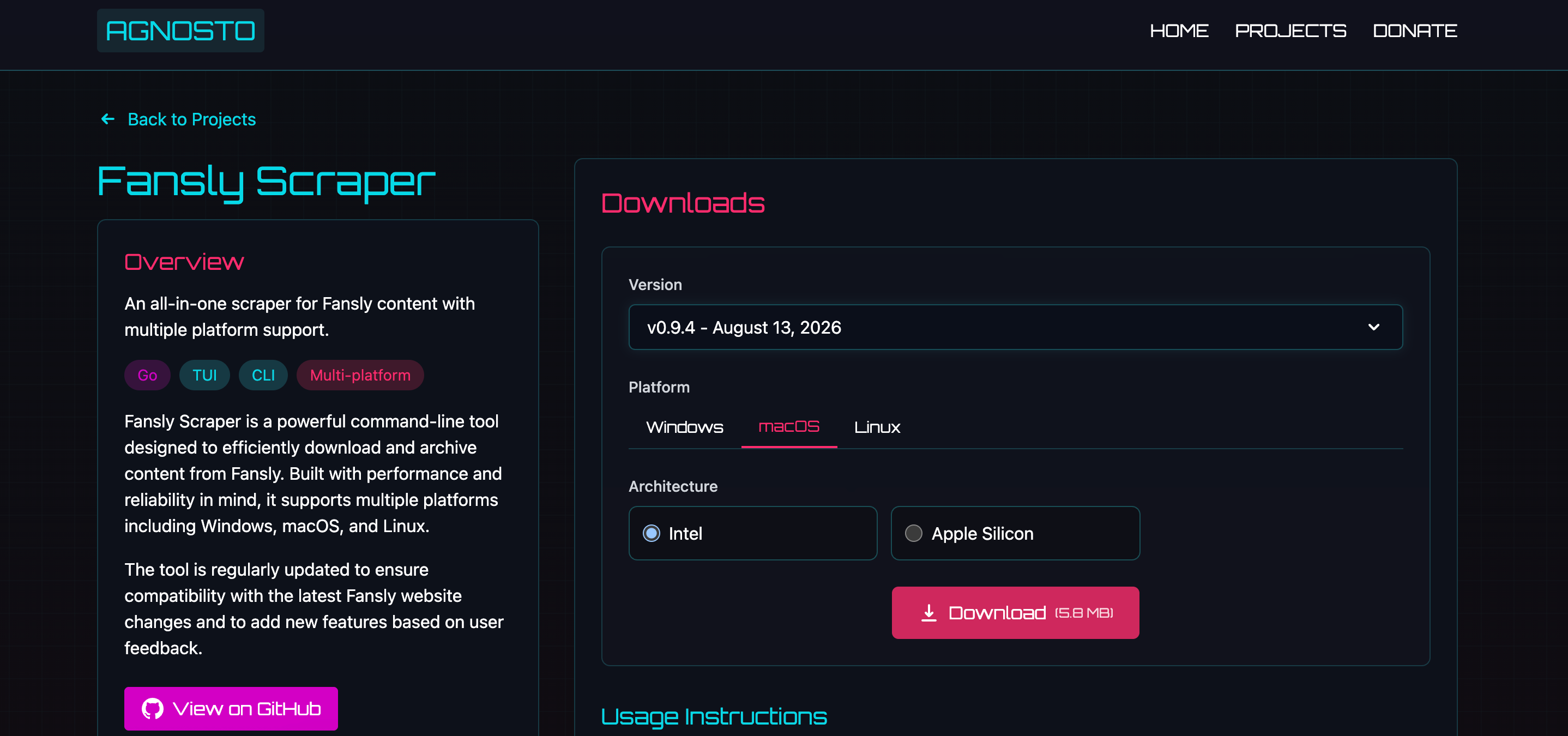
Fansly Scraper is a free, open-source tool designed to download and archive media from Fansly. Available for Windows, macOS, and Linux, it can save accessible content from creator timelines, messages, and stories. It also offers an interactive terminal interface and customizable download options for easier media management.
Main Features of Fansly Scraper:
- Download videos and images from Fansly
- Support for timelines, messages, and stories
- Bulk and parallel downloads for better efficiency
- Livestream monitoring and recording
- Customizable download and file organization
- Compatible with Windows, macOS, and Linux
- Free and open source
2. How to Use Fansly Scraper to Download from Fansly?
Getting started with Fansly Scraper requires a little more setup than a conventional desktop downloader.
Step 1: Download Fansly Scraper
Visit the official Fansly Scraper project page and select the appropriate version for your operating system. Releases are available for Windows, macOS, and Linux.
Alternatively, experienced users can install the application using Go. The GitHub repository also provides instructions for building the program directly from its source code.
Step 2: Run the Program
Launch the Fansly Scraper executable. In a terminal, the basic command is:
./fansly-scraper
On the first run, a setup wizard walks you through initial configuration, including choosing where downloaded files should be stored and setting up authentication.
Because authentication data can be sensitive, use caution whenever working with account tokens, cookies, browser developer tools, or similar credentials. Never share them with other people.
Step 3: Choose a Creator and Content
Beginners can use the interactive interface. More experienced users can run Fansly Scraper directly from the command line.
For example, the project’s documented syntax for downloading a creator’s accessible content is:
./fansly-scraper -u creator_name
You can also choose a particular content category:
./fansly-scraper -u creator_name -d timeline
The available download selections include all, timeline, messages, and stories.
Step 4: Let the Scraper Download the Files
Once the desired creator and download category are selected, Fansly Scraper retrieves the media your authenticated account can access and saves it according to the configured file structure.
The project also offers livestream monitoring. However, its documentation notes that live monitoring requires the terminal session to remain active.
3. Pros and Cons of Fansly Scraper
Pros:
- Free and open source
- Works on Windows, macOS, and Linux
- Supports multiple Fansly content categories
- Offers both interactive and command-line operation
- Provides configurable downloading and organized file storage
- Supports livestream monitoring and recording
Cons:
- Less beginner-friendly than a regular desktop application
- Initial setup and authentication can feel complicated
- Some functionality benefits from additional tools such as FFmpeg
- The developer warns that some features may not work perfectly
- The project currently has very limited planned support and maintenance
4. Try the Ultimate Fansly Bulk Media Downloader – Fansget
If Fansly Scraper seems too technical, Fansget offers a simpler alternative.
Fansget is a dedicated bulk video and picture downloader for Fansly. Rather than requiring users to become comfortable with command-line arguments and scraper configuration, it focuses on a streamlined desktop workflow.
Main Features of Fansget:
- Save multiple Fansly videos, images, and albums in one click.
- Download videos in available HD, Full HD, and 4K resolutions.
- Preserve the quality of Fansly images.
- Support video formats such as MP4 and MKV and image formats including JPEG, PNG, and WebP.
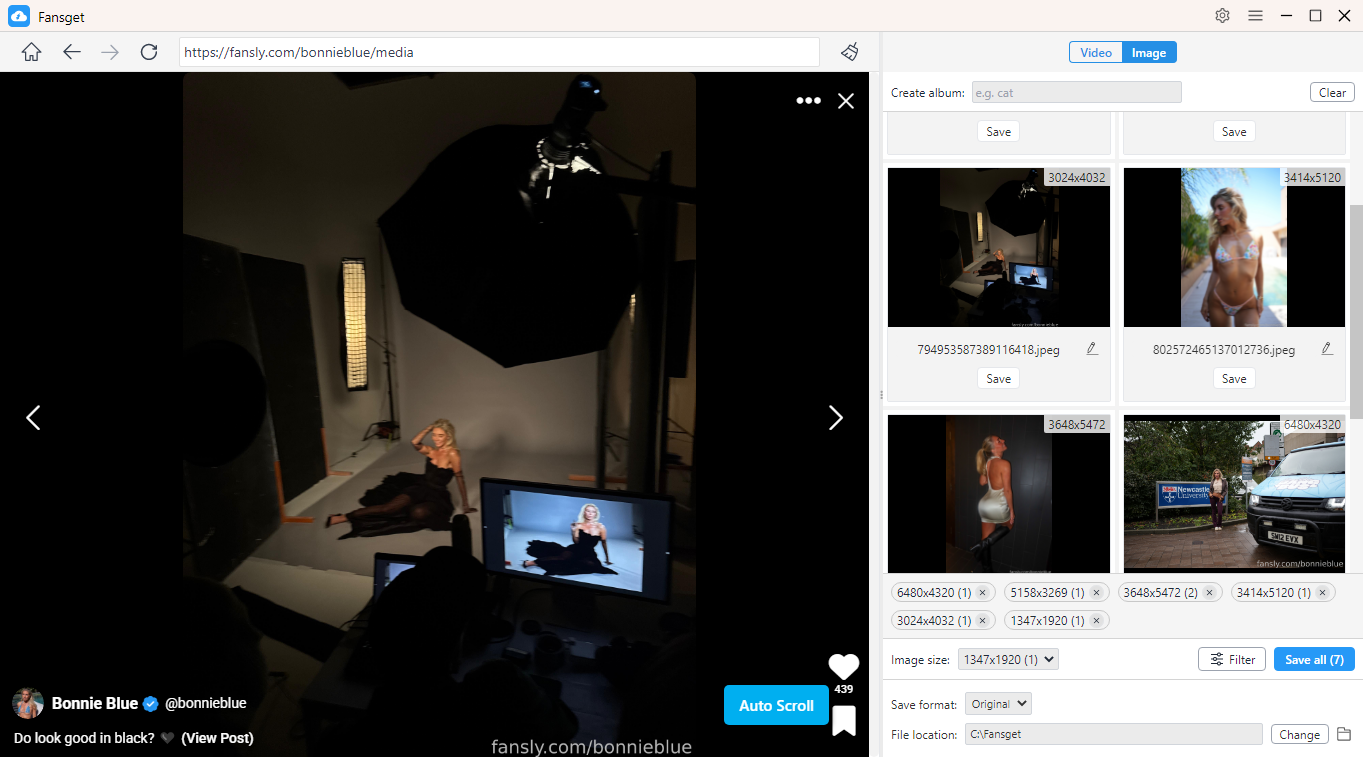
- Filter images according to properties such as type, resolution, or format.
- Available for both Windows and Mac.
Steps using Fansget:
- Grab the version that matches your Windows PC or Mac, install it, and launch the program.
- Use Fansget’s built-in browser to log in to Fansly, then open the creator profile containing the content you want to download.
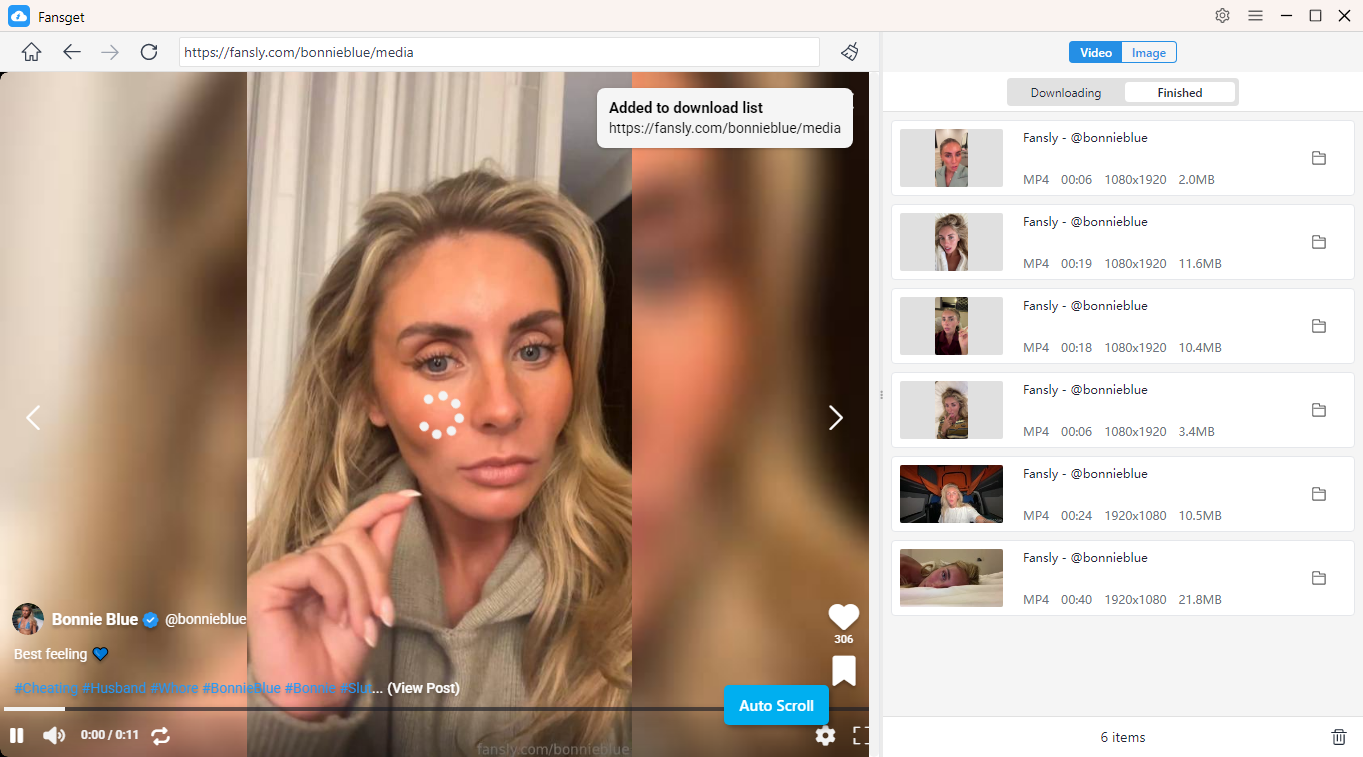
- Head to Videos, play a video and hit Download, then Fansget will scan for available videos and queue them for batch downloading.
- Let Fansget scan the page for available images, choose the photos you want, and download them together from the built-in panel.
5. Conclusion
Fansly Scraper is a solid choice for users who prefer a free, open-source solution and don’t mind working with command-line tools. However, its setup and configuration can be challenging for beginners.
For a simpler and more convenient experience, Fansget is a great alternative. With bulk downloading, high-quality video and image support, and an easy-to-use workflow, Fansget makes it easier to save and manage Fansly media you have access to.