How to Clear Instagram Cache?

As one of the most popular social media platforms in the world, Instagram is used daily for browsing photos, watching Reels, sharing Stories, and messaging friends. While the app is designed to run smoothly, frequent usage causes temporary files—known as cache—to build up over time.
Cache helps Instagram load faster by storing recently viewed images, videos, and profile data on your device. However, excessive cached data can lead to problems such as slow performance, app crashes, storage issues, or outdated content appearing in your feed.
If your Instagram app feels sluggish or is taking up too much storage, clearing the cache can help. In this guide, you’ll learn what clearing Instagram cache actually does, how to clear Instagram cache on PC and iPhone, and why backing up your media beforehand is a smart move.
1. What Does Clearing Instagram Cache Do?
Before deleting anything, it’s important to understand what clearing cache actually means.
When you use Instagram, the app temporarily stores:
- Profile pictures
- Previously viewed photos and videos
- Search history
- Interface data
- Reels and Stories previews
Clearing the Instagram cache:
- ✅ Frees up storage space
- ✅ Fixes app glitches and loading issues
- ✅ Removes temporary files
- ✅ Refreshes outdated data
- ✅ May improve app speed
What it does NOT do:
- ❌ It does not delete your Instagram account
- ❌ It does not remove your posts
- ❌ It does not delete your messages
- ❌ It does not unfollow anyone
Essentially, clearing cache removes temporary files stored on your device—not the actual content stored on Instagram’s servers.
2. How to Clear Instagram Cache on PC?
If you use Instagram through a web browser on your computer, the cache is stored by your browser—not by Instagram itself. That means you need to clear your browser cache to clear Instagram’s cached data.
Below is an example using Google Chrome (steps are similar for other browsers).
Method 1: Clear Browser Cache
- Open your browser (e.g., Chrome) and click the three-dot menu (⋮) in the top-right corner.
- Go to Settings → Privacy and Security → Click Clear browsing data → Select Cached images and files.
- Choose a time range (Last 24 hours, 7 days, or All time) → Click Clear data.
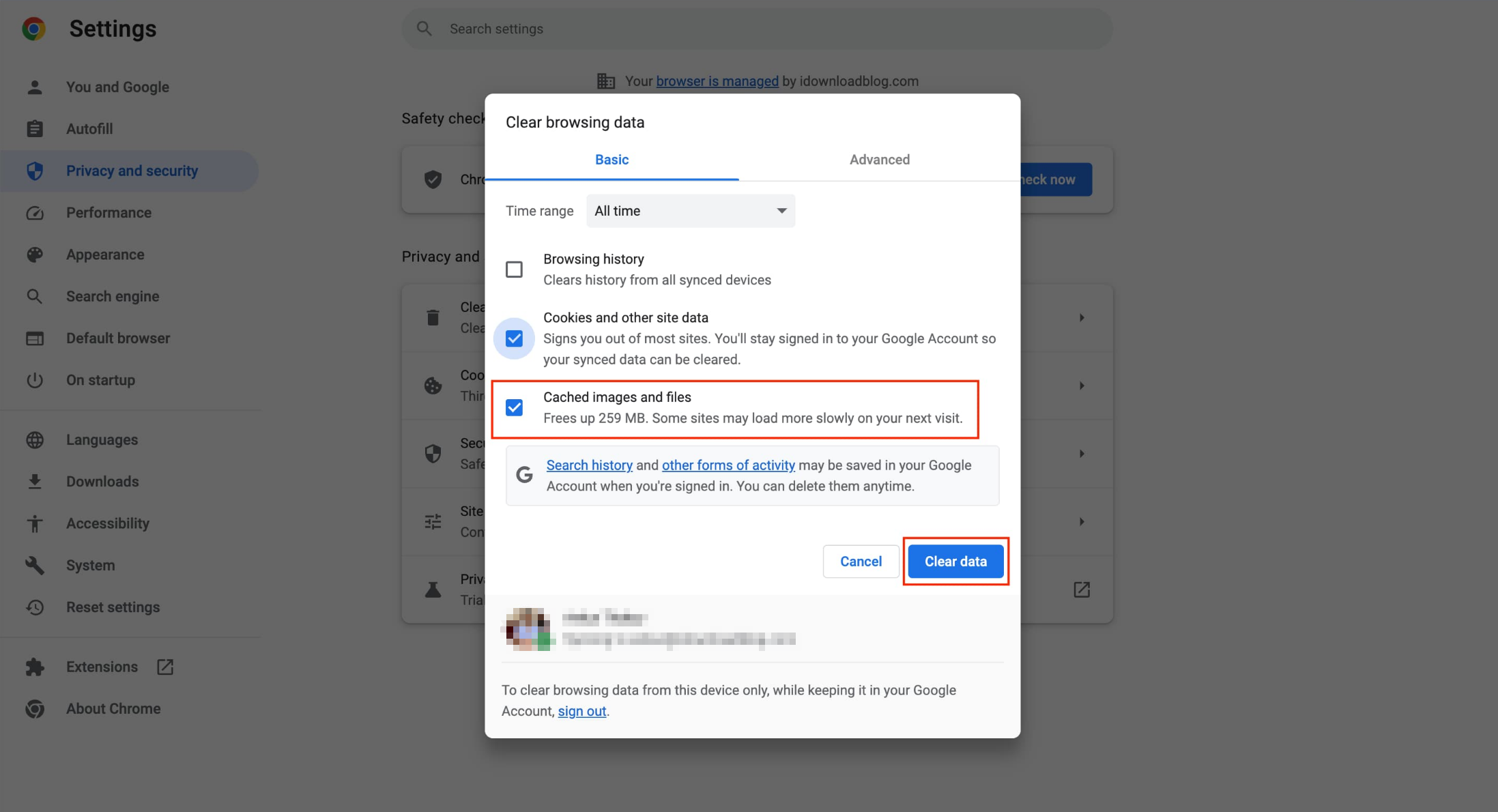
After clearing, reopen Instagram in your browser. The first load may take slightly longer as new cache files are created.
Method 2: Clear Instagram Data Only
If you don’t want to delete all browser cache:
- Go to Settings → Privacy and Security → Select Cookies and other site data → Click See all site data.
- Search for “instagram.com” and remove the stored data for Instagram only.
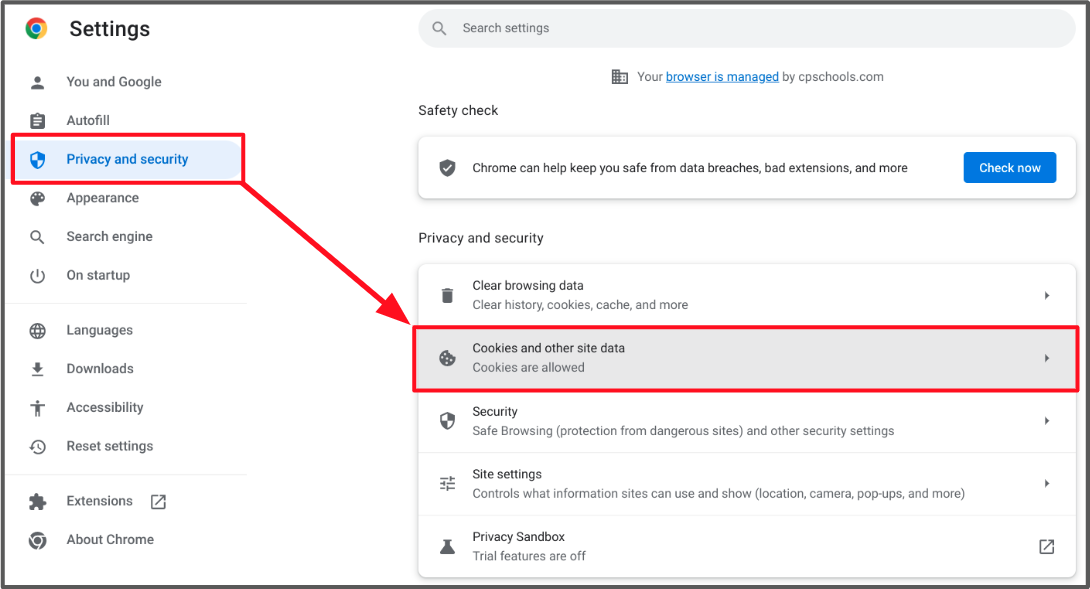
This method targets Instagram specifically without affecting other websites.
3. How to Clear Instagram Cache on iPhone?
Unlike some devices, iPhones do not offer a direct “Clear Cache” button inside the Instagram app. However, you can clear cache by offloading or reinstalling the app.
Method 1: Offload Instagram (Recommended)
Offloading removes the app but keeps your data.
- Open Settings and tap General → iPhone Storage → Scroll down and select Instagram.
- Tap Offload App, then confirm and reinstall it from the App Store.
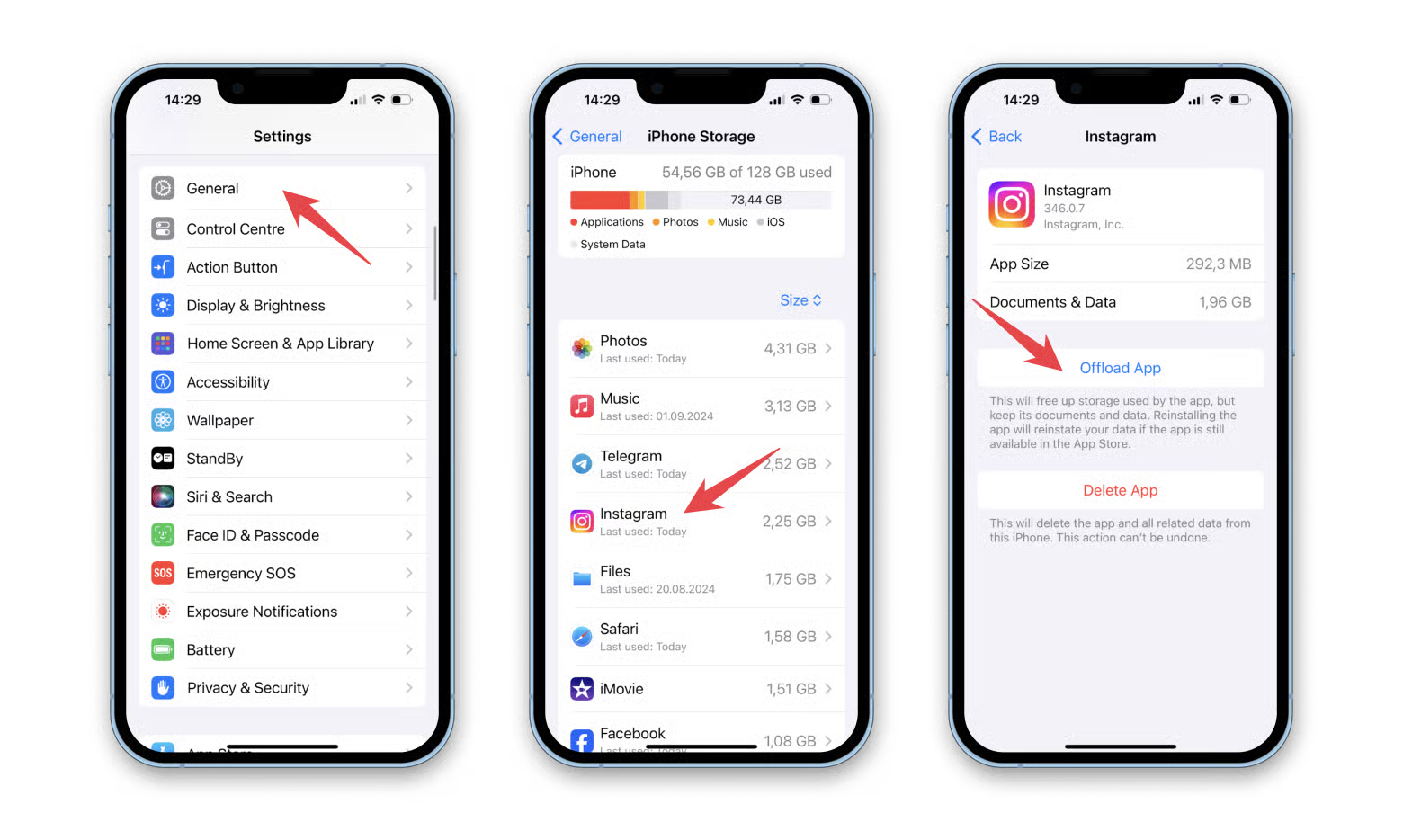
This clears cached files while preserving most of your data.
Method 2: Delete and Reinstall Instagram
If problems persist:
- Press and hold the Instagram icon → Tap Remove App → Delete App → Confirm deletion.
- Open the App Store, download Instagram again, and sign back into your account.
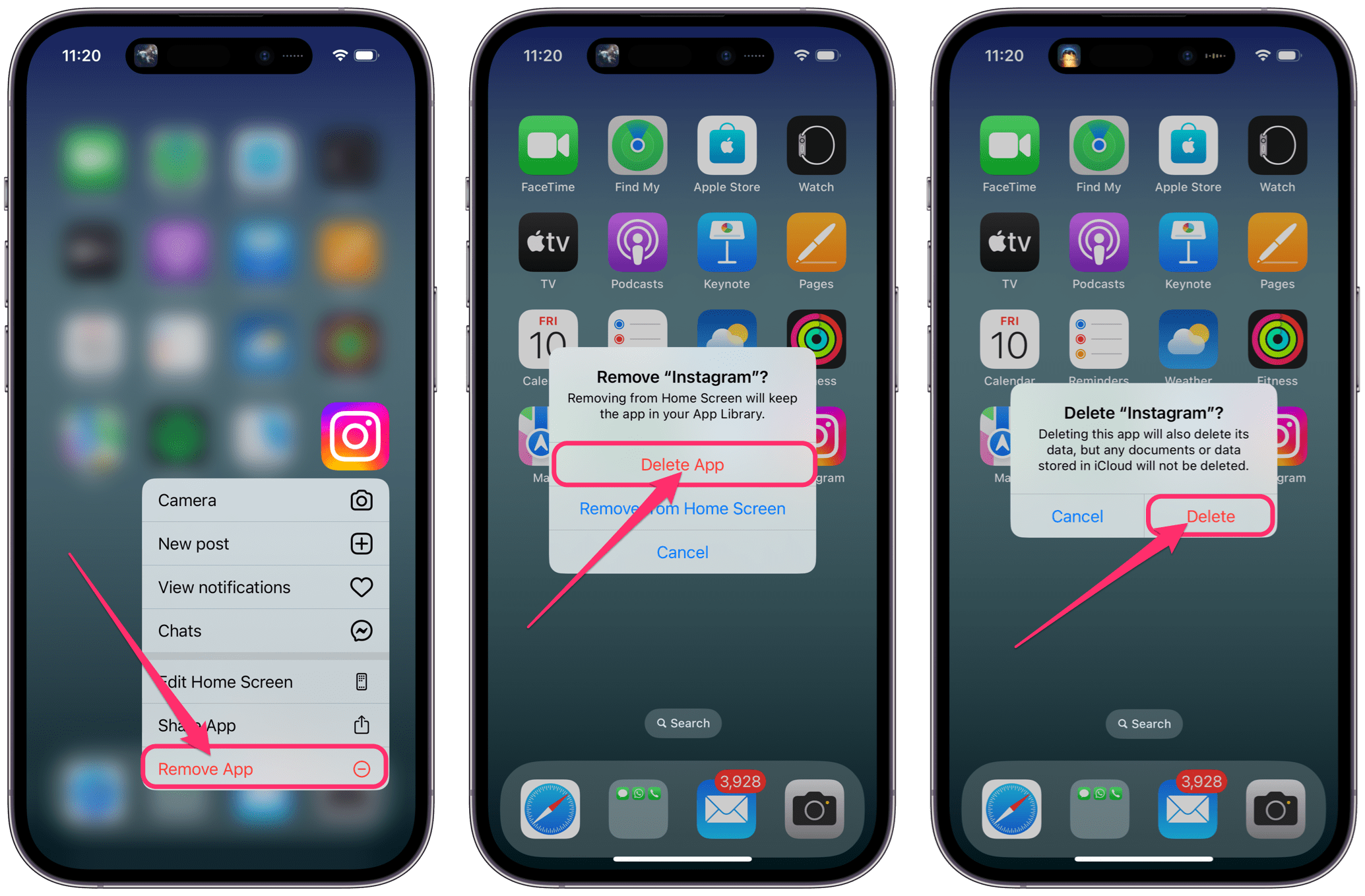
This method completely removes all app data, including cache.
4. Bonus: Back Up IG Media with Insget Before Clearing Cache
Although clearing cache doesn’t delete your posts, reinstalling the app may remove drafts, saved files, or locally stored media. To stay safe, it’s wise to back up important Instagram content before clearing cache.
That’s where Insget becomes useful. Insget allows you to download Instagram photos, videos, and Reels directly to your device in high quality. Having a local backup ensures you won’t lose valuable content—especially if you manage business accounts or personal archives.
How to Back Up Instagram Media with Insget:
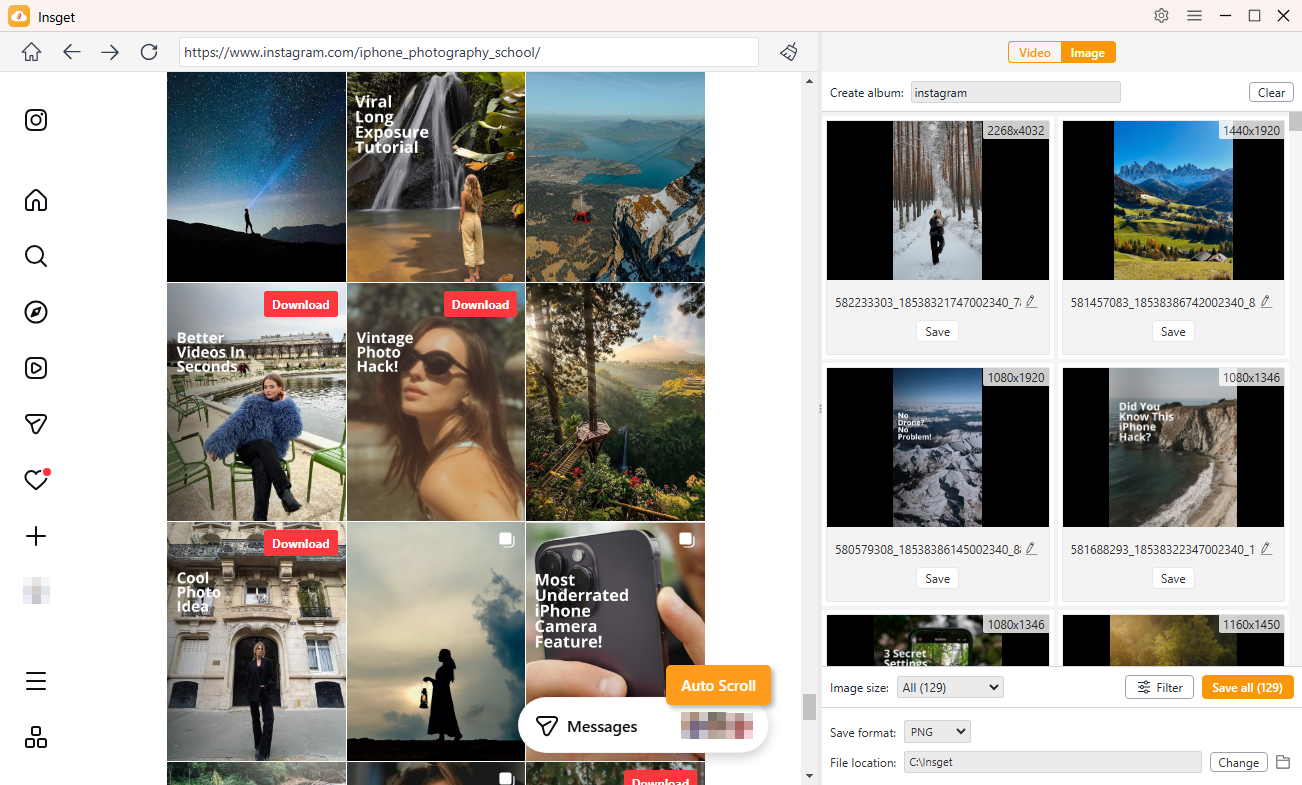
- Download and install Insget on your Windows or Mac computer, then launch the program.
- Sign in to Instagram using your IG account to access the content you want to download.
- To back up Instagram videos, browse and play the target video, then click the Download button. Insget will automatically add the video to the download queue and begin saving it.

- To back up Instagram photos, scroll through the page so Insget can detect and extract the original images. After that, select the photos you want and download them with one click.
5. Conclusion
Clearing Instagram cache is a simple yet effective way to fix performance issues, free up storage space, and refresh outdated data. On PC, clearing browser cache does the job, while on iPhone, offloading or reinstalling the app removes temporary files.
Before taking action, however, backing up your important Instagram photos and videos is always a smart decision. That’s why Insget is highly recommended. With its one-click download feature, high-quality output, and user-friendly design, Insget makes it easy to secure your Instagram media safely and efficiently.
If you want smoother Instagram performance and reliable media backups, clear your cache and use Insget to keep your valuable content protected.