How to Delete and Recover Your Instagram Account?

From photos and short videos to Stories and Reels, Instagram has become a go-to platform for sharing life and staying connected. However, there may come a time when you decide to step away from the platform. Perhaps you want to take a break from social media, protect your privacy, or simply no longer use your account. In these situations, Instagram gives you the option to either temporarily deactivate or permanently delete your account.
Some users may also change their minds after deleting an account and wish to regain access. Fortunately, Instagram offers a limited recovery period for permanently deleted accounts, making it possible to restore your profile if you act quickly.
This guide explains how to permanently delete your Instagram account, how to recover a deleted Instagram account, and how to safeguard your precious photos and videos before making any changes.
1. How to Delete Your Instagram Account?
Before deleting your account, it’s important to understand the difference between deactivation and deletion.
- Deactivate your account: Temporarily hides your profile, posts, followers, and messages. Whenever you decide to come back, simply log in to reactivate your account.
- Delete your account: Permanently removes your profile, photos, videos, comments, likes, and followers after the deletion period expires.
If you’re certain you want to delete your account permanently, follow these steps:
On mobiles:
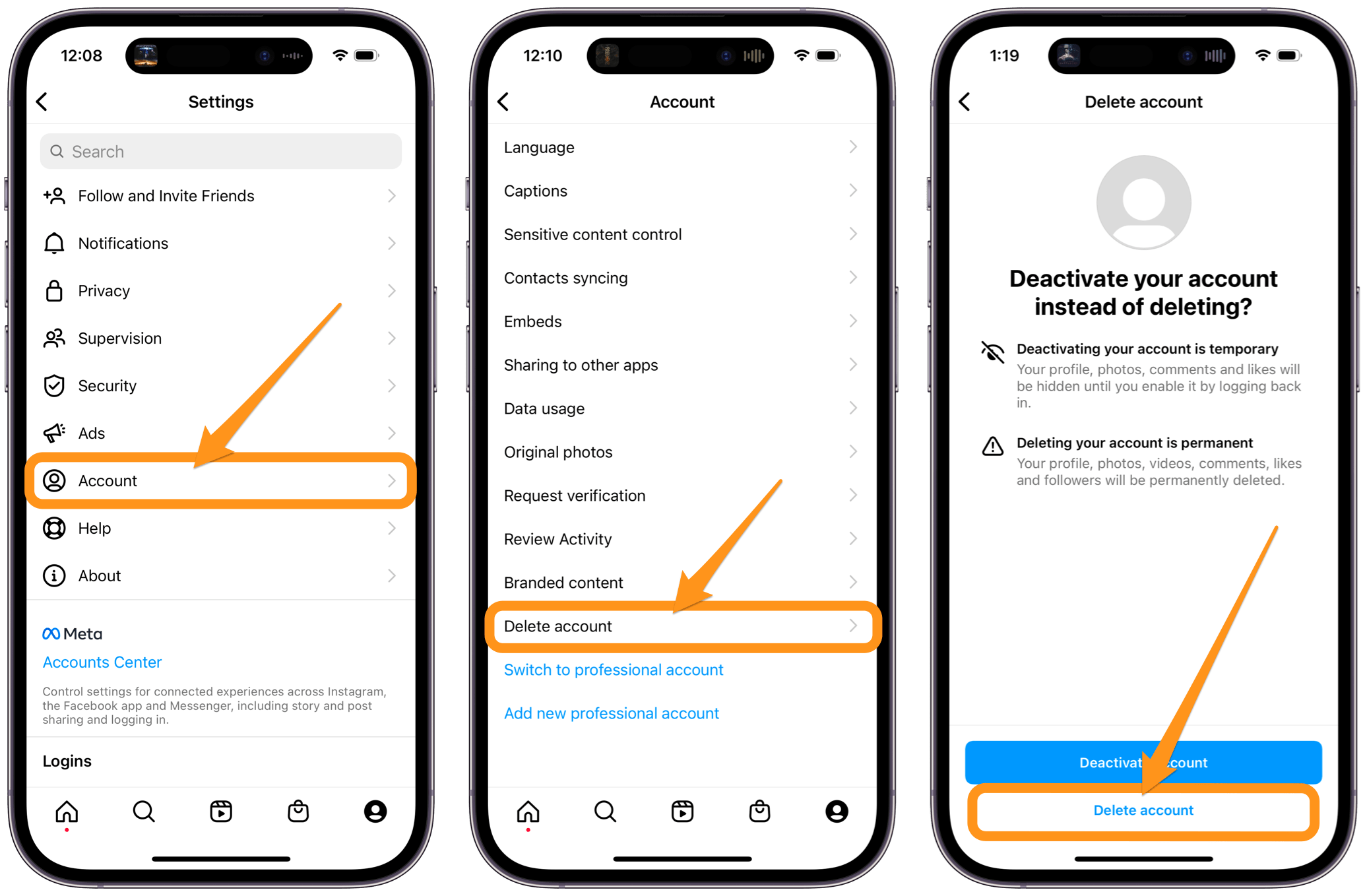
- Open the Instagram app, tap your profile picture and click the menu (☰) in the upper-right corner.
- Go to Settings > Tap Accounts > Select Delete account > Choose Deactivate account or Delete account, select the Instagram account you want to remove and follow the on-screen instructions to confirm your identity.
On PC:
- Log into Instagram with a desktop browser.
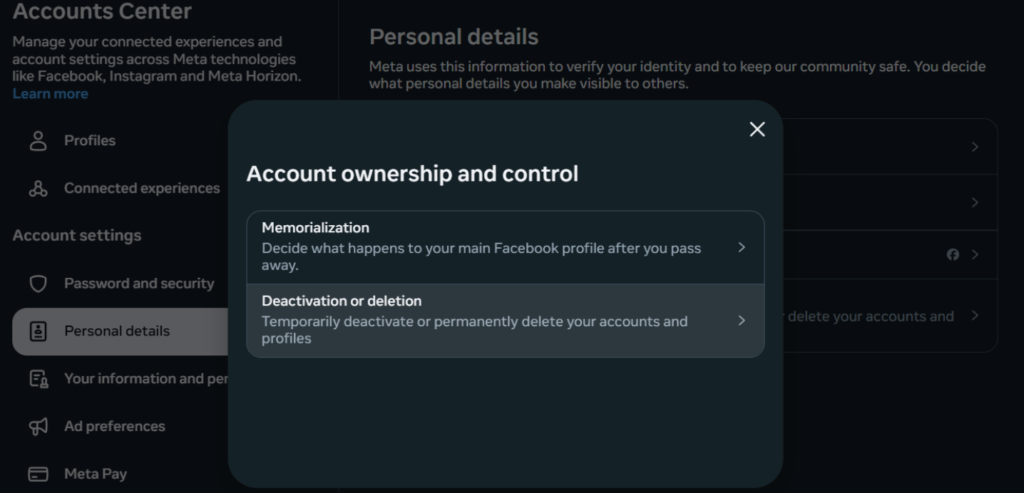
- Open Accounts Center > Navigate to Personal Details > Click Account Ownership and Control.
- Choose Deactivation or Deletion, select your account, then verify your password and confirm.
2. What Happens After Deletion?
After requesting deletion, Instagram doesn’t erase your account immediately.
Instead:
- Your account becomes inaccessible.
- Instagram schedules it for permanent deletion.
- Instagram typically gives you 30 days to cancel the deletion request.
- During this period, simply logging back into your account and canceling the deletion request will restore everything.
After the grace period expires, your account and all associated data are permanently removed and generally cannot be recovered.
3. How to Recover a Deleted Instagram Account?
Whether you can recover your Instagram account depends on its current status.
Scenario 1: Recover an Account Scheduled for Deletion
If you recently requested account deletion and the waiting period hasn’t ended, recovery is straightforward.
- Open the Instagram app or website.
- Log in using your username and password.
- If prompted, select Keep Account or Cancel Deletion.
- Complete any identity verification if required.
After canceling the deletion, your account should reappear with your posts, followers, and conversations restored.
Scenario 2: Recover a Disabled Account
Sometimes Instagram disables accounts because of policy violations or suspicious activity.
If this happens:
- Try logging into your account.
- Follow the appeal instructions displayed.
- Submit any requested identification documents.
- Wait for Instagram to review your request.
If Instagram rules in your favor, your account will be reinstated.
Scenario 3: Account Permanently Deleted
Unfortunately, if:
- the 30-day deletion period has passed,
- Instagram permanently removed your account,
- or your data has already been erased,
there is generally no way to recover the account or its content.
You’ll need to create a new Instagram account and start over.
This is why backing up your media before deleting your account is highly recommended.
4. Bonus Tip: Back Up Instagram Media with Insget
Deleting an Instagram account means losing access to years of memories, including photos, videos, reels, stories, and highlights. Even if you don’t plan to leave Instagram permanently, creating a backup ensures your content remains safe.
Insget is an easy-to-use Instagram downloader that helps you save your favorite media to your computer before deleting your account.
Key features of Insget:
- Download photos and videos from Instagram profiles in bulk.
- Save media in HD, Full HD, 4K, or original quality.
- Download videos in MP4 and save images as JPEG, PNG, or WebP.
- Filter photos by format and quality before downloading.
- Works on both Windows and macOS computers.
Steps using Insget:
- Start by installing Insget on your Windows or Mac computer, then launch it to begin.
- Log in to your Instagram account directly through Insget; Once signed in, you can browse the videos and photos available on your account.
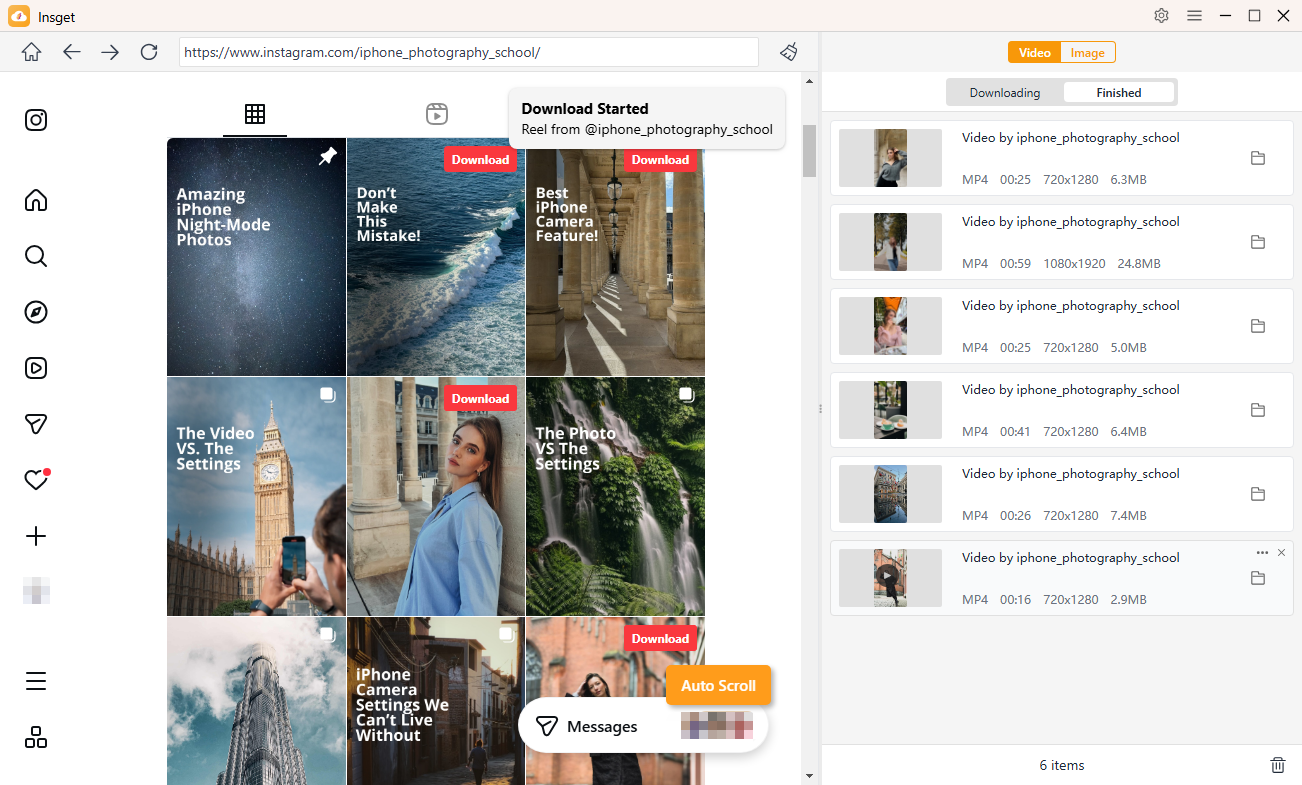
- Play the Instagram video you want to save, click Download to add it to Insget’s download queue, and repeat the process for any other videos you want to download.
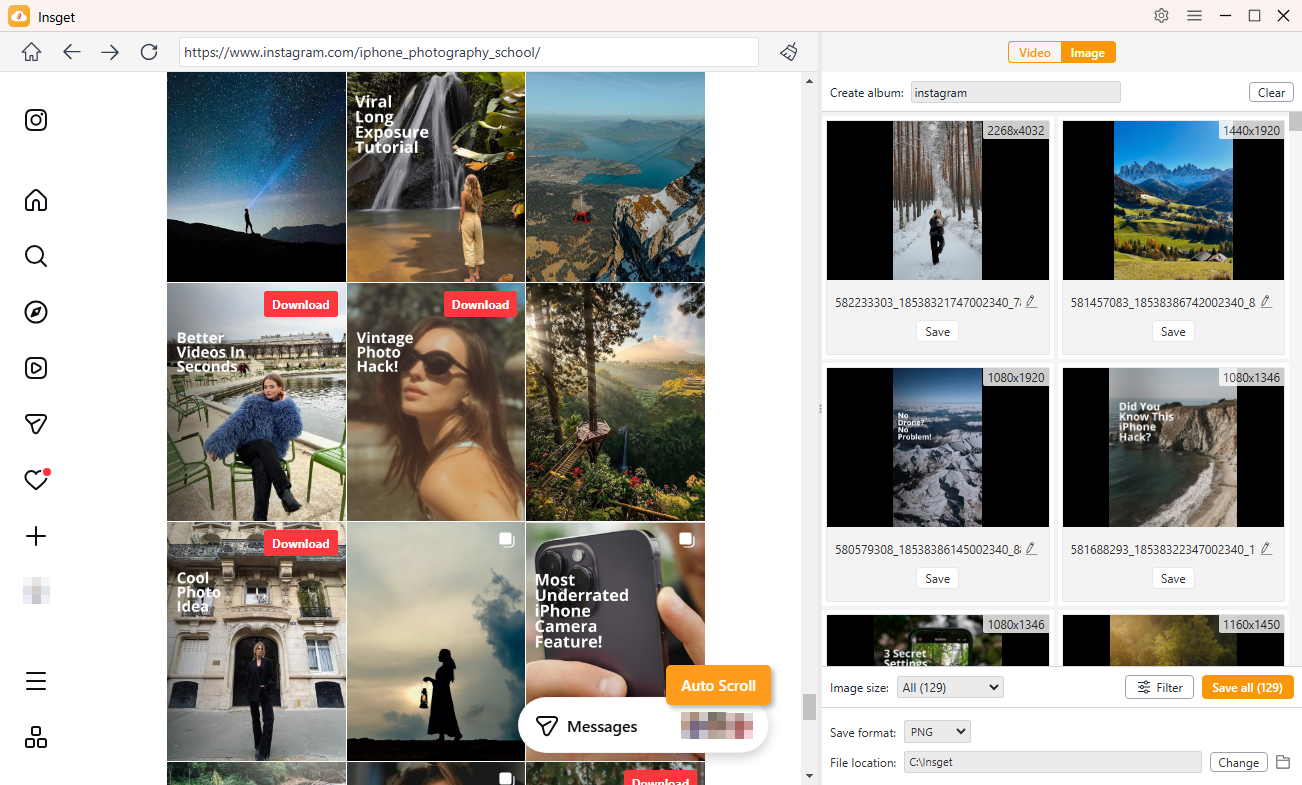
- To save Instagram photos, scroll through Instagram, and Insget will automatically recognize the available images. Filter and select your preferred photos, then click Download to save them in one go.
5. Conclusion
Deleting your Instagram account can be a good choice if you’re looking to reduce your online presence or move away from social media. Fortunately, Instagram provides a short grace period that allows you to recover your account if you change your mind before permanent deletion occurs.
However, once the deletion deadline passes, recovering your account and its content is usually impossible. That’s why creating a backup beforehand is one of the smartest precautions you can take.
If you want a simple and reliable way to preserve your Instagram photos, videos, reels, stories, and other media, Insget is an excellent solution. By downloading and storing your content in advance, you can confidently manage your Instagram account without worrying about losing your favorite memories forever.