How to Clear Twitter Cache (X) on Any Device?

If you’ve noticed that X (formerly Twitter) is loading slowly, crashing unexpectedly, or taking up a significant amount of storage on your device, clearing its cache can often solve the problem. Like most apps and websites, X stores temporary files—known as cache—to speed up loading times and improve your browsing experience. These cached files include images, videos, webpage data, and other temporary content that your device saves for quick access.
While cache is generally helpful, it can become outdated or excessively large over time. This may lead to app glitches, login problems, slow performance, or unnecessary storage usage. Fortunately, clearing the Twitter cache is a safe and straightforward process that won’t delete your tweets, direct messages, followers, or account information.
In this guide, we’ll explain how to clear the Twitter cache in different devices and introduce an easy-to-use tool for backing up your favorite Twitter/X videos and images before organizing your device.
1. How to Clear Twitter Cache?
The exact steps depend on whether you’re using X in a browser or through the mobile app. Follow the method that matches your device.
1.1 Clear Twitter Cache in a Web Browser
If you primarily access Twitter/X through Chrome, Edge, Firefox, or Safari, clearing your browser cache can resolve loading errors, login issues, and outdated page content.
1) Google Chrome:
Open Chrome and click the three-dot menu in the upper-right corner > Select Delete Browsing Data > Choose a Time Range (such as “All Time” for a complete cleanup) > Tick Cached images and files and choose Delete Data.
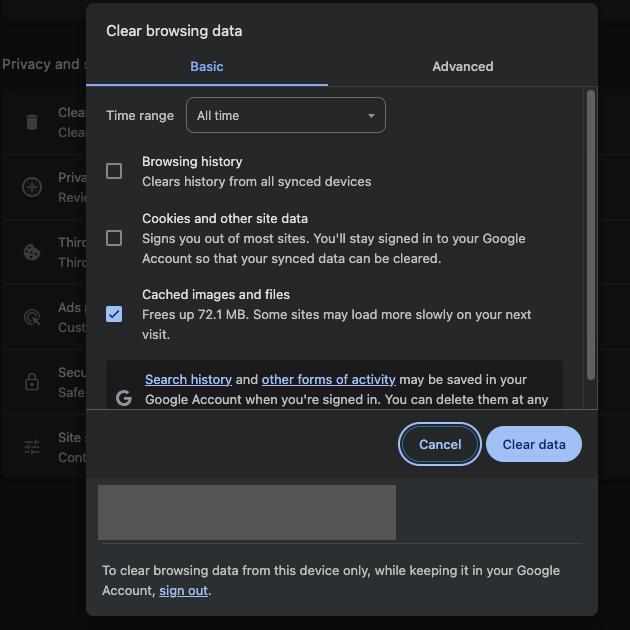
If you don’t want to clear your entire browser cache, you can clear data specifically for x.com from Chrome’s Site Settings.
2) Microsoft Edge:
Launch Microsoft Edge, open Settings > Privacy, Search, and Services > Under Clear Browsing Data, click Choose What to Clear > Select Cached Images and Files and click Clear Now.
3) Mozilla Firefox
In Firefox, open Settings > Privacy & Security. Scroll to Cookies and Site Data, click Clear Data, select Cached Web Content, and then click Clear.
4) Safari (Mac):
Open Safari and go to Safari > Settings > Privacy > Click Manage Website Data and search for x.com > Remove its stored data, or choose Remove All to clear all website caches.
After clearing the browser cache, reload Twitter/X. The website may take a little longer to load initially because it needs to download fresh files.
1.2 Clear Twitter Cache on iPhone
Unlike Android, iOS doesn’t include a built-in option for clearing the cache of individual apps like X. Instead of a dedicated cache-clearing tool, Apple offers offloading or reinstalling the app to remove temporary files.
1) Offload the App
Open Settings and tap General > Select iPhone Storage, then find and tap X > Tap Offload App and confirm the action > Reinstall the app by tapping Reinstall App.
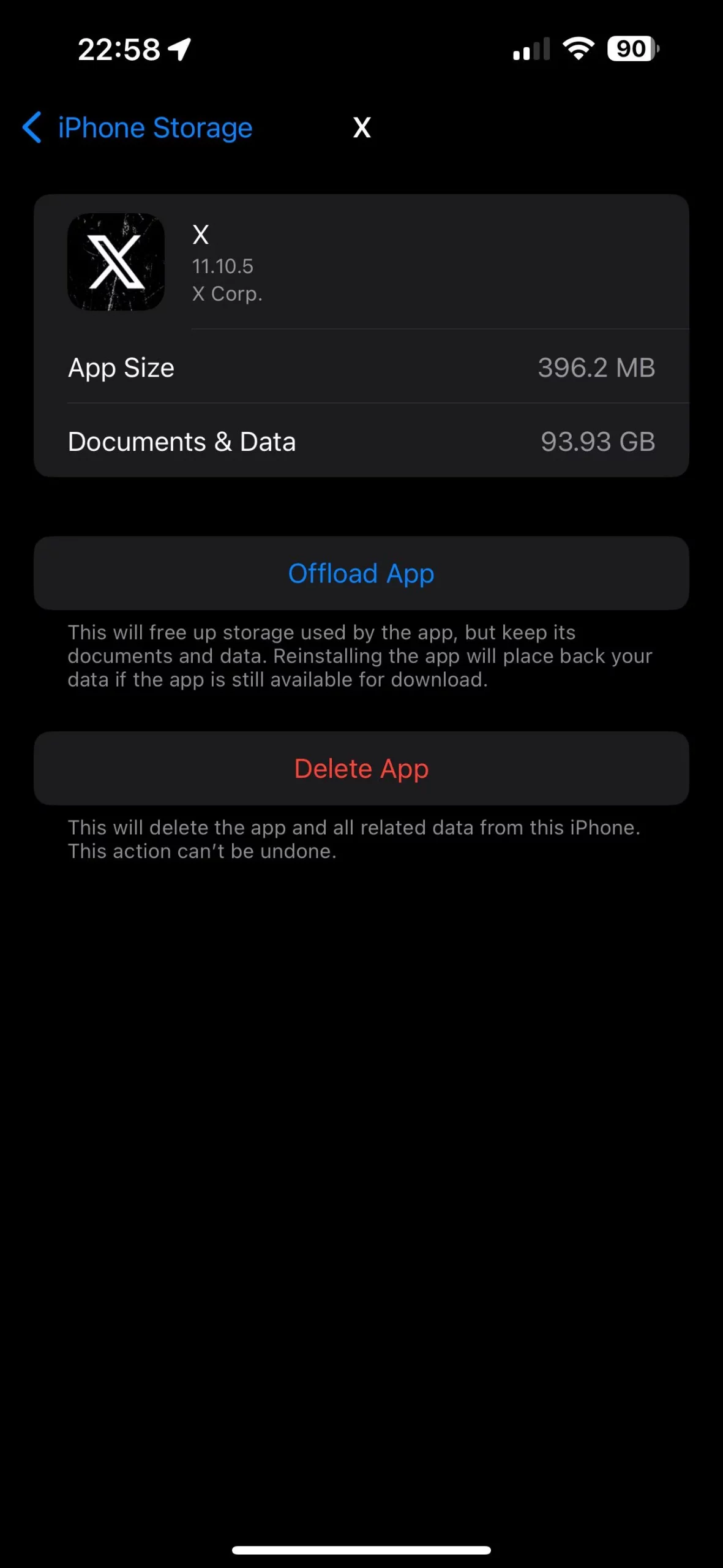
Offloading removes cached files while preserving your documents and account data.
2) Delete and Reinstall
If offloading doesn’t reduce storage enough:
Open Settings > General > iPhone Storage > Select X and tap Delete App. Download X again from the App Store and sign back into your account.
Reinstalling completely removes cached files and often resolves persistent app issues.
1.3 Clear Twitter Cache on Android
Android offers more flexibility by allowing users to clear cache directly without deleting app data.
1) Clear Cache from Android Settings
Open Settings, then tap Apps or Applications > Select X (Twitter), tap Storage and press Clear Cache.
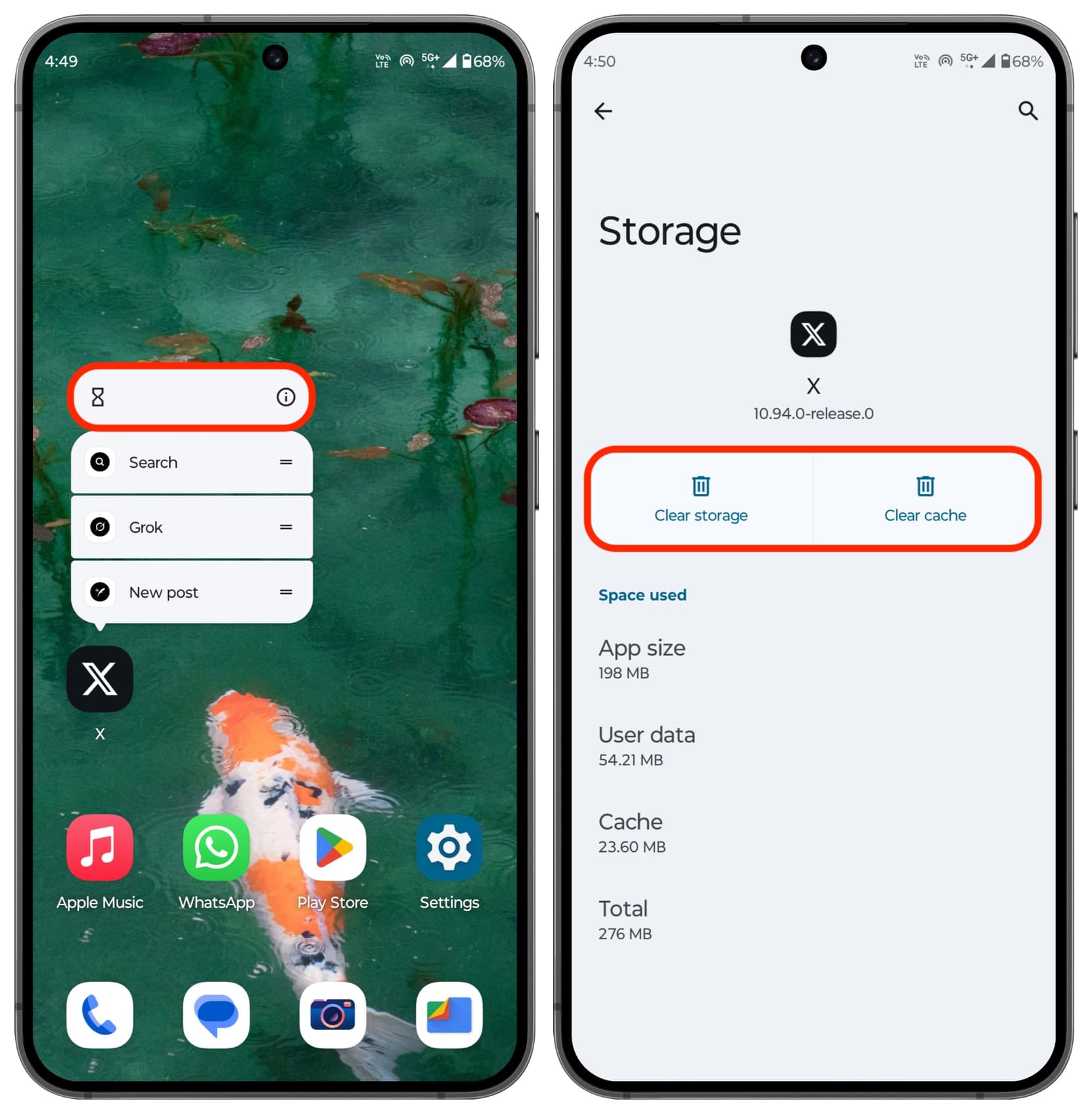
This deletes temporary files while keeping your login information, settings, and downloaded content intact.
2) Clear Cache Within the X App
Some versions of the X app include built-in storage management.
Open the X app and tap your profile picture > Select Settings and Privacy, then open Data Usage > Tap Media Storage and select Clear Media Storage > Return to Web Storage, then tap Clear Web Page Storage or Clear All Web Storage.
This removes cached media and webpage files without affecting your tweets or account.
2. Bonus: Back Up Twitter/X Media with Xget
Although clearing the cache doesn’t delete your Twitter posts or account, it also doesn’t preserve media you’ve viewed or bookmarked. If a creator deletes a tweet or removes their account, videos and images may disappear permanently.
For anyone who wants to archive important Twitter content, Xget provides a simple and efficient solution.
Xget is a dedicated Twitter/X media downloader designed to help users save videos, images, GIFs, and entire media collections in their original quality. Instead of downloading files one at a time, Xget can detect and download multiple media files simultaneously, making it ideal for creators, researchers, marketers, and everyday users.
Why choose Xget:
- Batch download Twitter/X videos in their original quality.
- Save images, GIFs, and other media from tweets with ease.
- Filter X images by size, format, and file type before downloading.
- Export media in popular formats like MP4 and PNG or keep the original format.
- Fully compatible with both Windows and macOS.
How to back up Twitter/X media with Xget:
- Start by installing Xget and signing in to your Twitter/X account inside the software.
- To download videos, open the tweet containing the video and play it. Xget will automatically detect the video. Choose your preferred format, resolution, and save location, then click Download. The video will be processed and saved to your computer within seconds.

- To download images, simply scroll through the Twitter/X page to let Xget detect available photos. Once the images appear, filter them by size or type, select the ones you want, and click Download to save them all at once.

3. Conclusion
Clearing the Twitter (X) cache is an effective way to improve performance, fix loading problems, and recover valuable storage space. Whether you use Twitter in a web browser, on an iPhone, or on an Android device, removing cached files is a quick maintenance task that keeps the app running smoothly without affecting your account or personal data.
If you also want to protect the videos, images, and GIFs you find on Twitter, Xget is an excellent companion tool. It lets you download and organize Twitter/X media in bulk, ensuring your favorite content remains available even if it’s removed from the platform. By combining regular cache cleaning with reliable media backups through Xget, you can enjoy a faster, cleaner, and more secure Twitter experience.